Suspend Service When Payment Is Overdue
Watch the video or scroll down for step-by-step instructions
Tiers: Scaling Up and above
Note: When customers are suspended, they still receive invoices by email. The frequency is determined by your Send reminder emails # day(s) after invoice is due setting (Settings > Invoicing).

Step-by-step instructions . . .
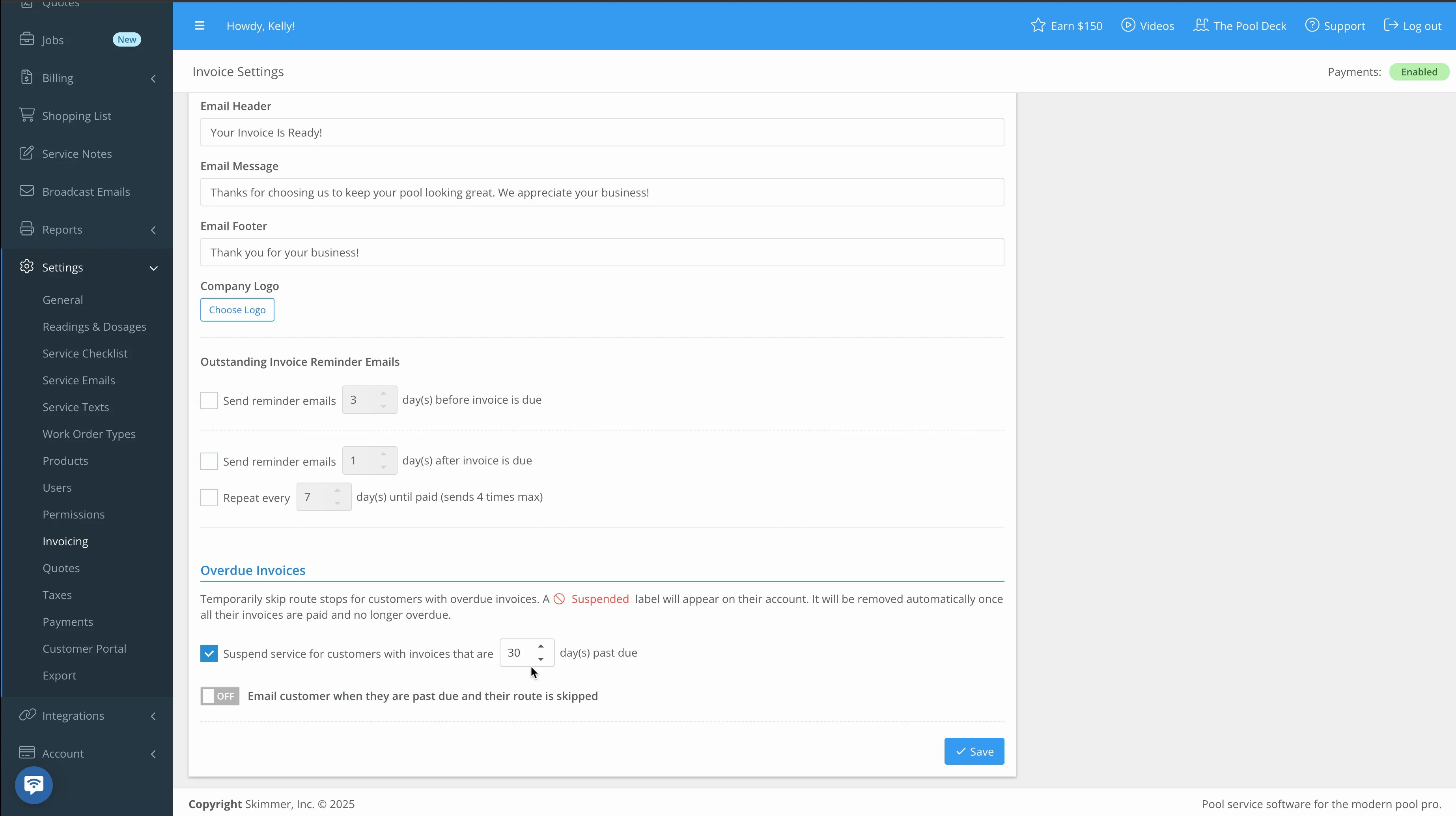
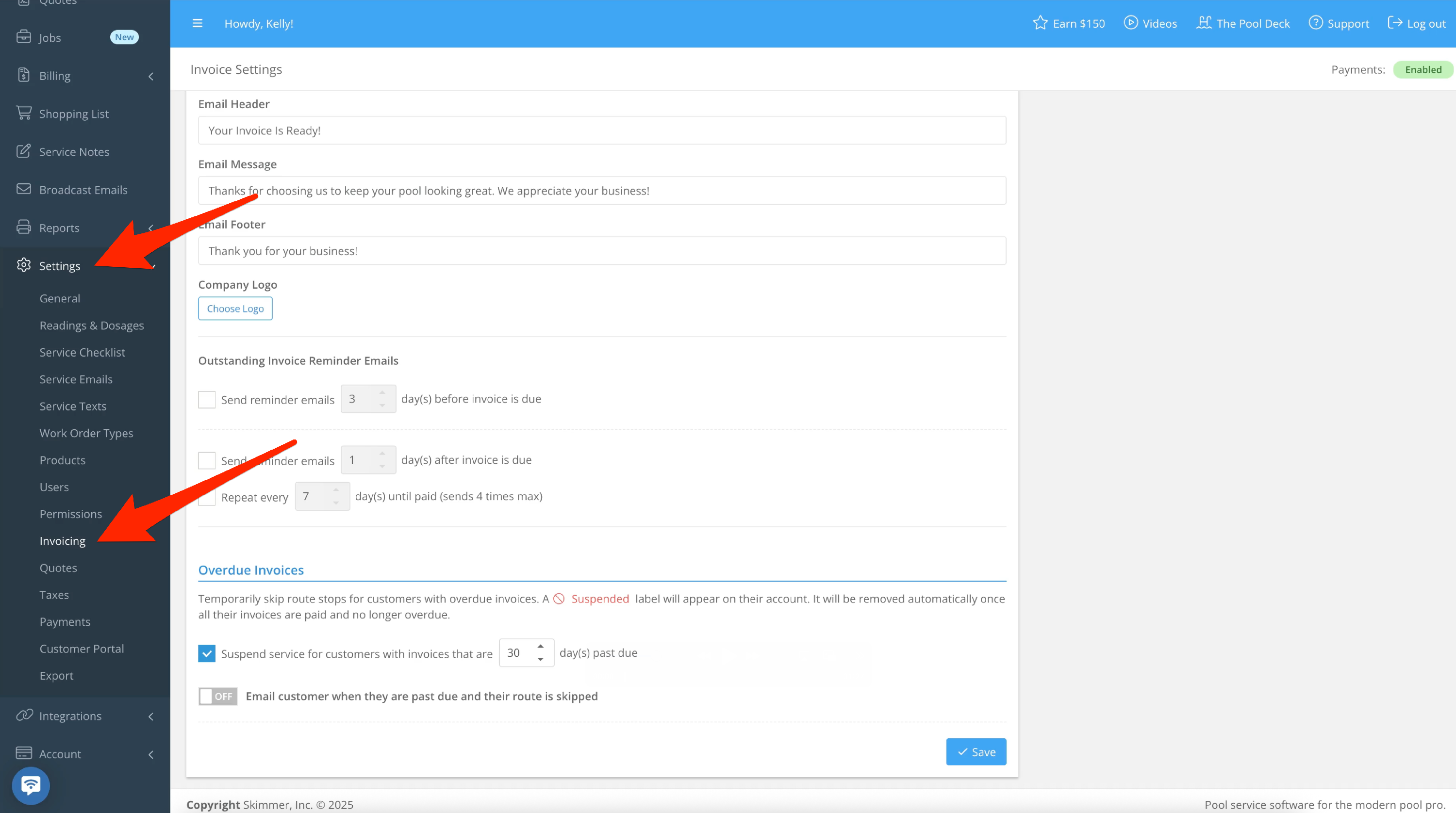
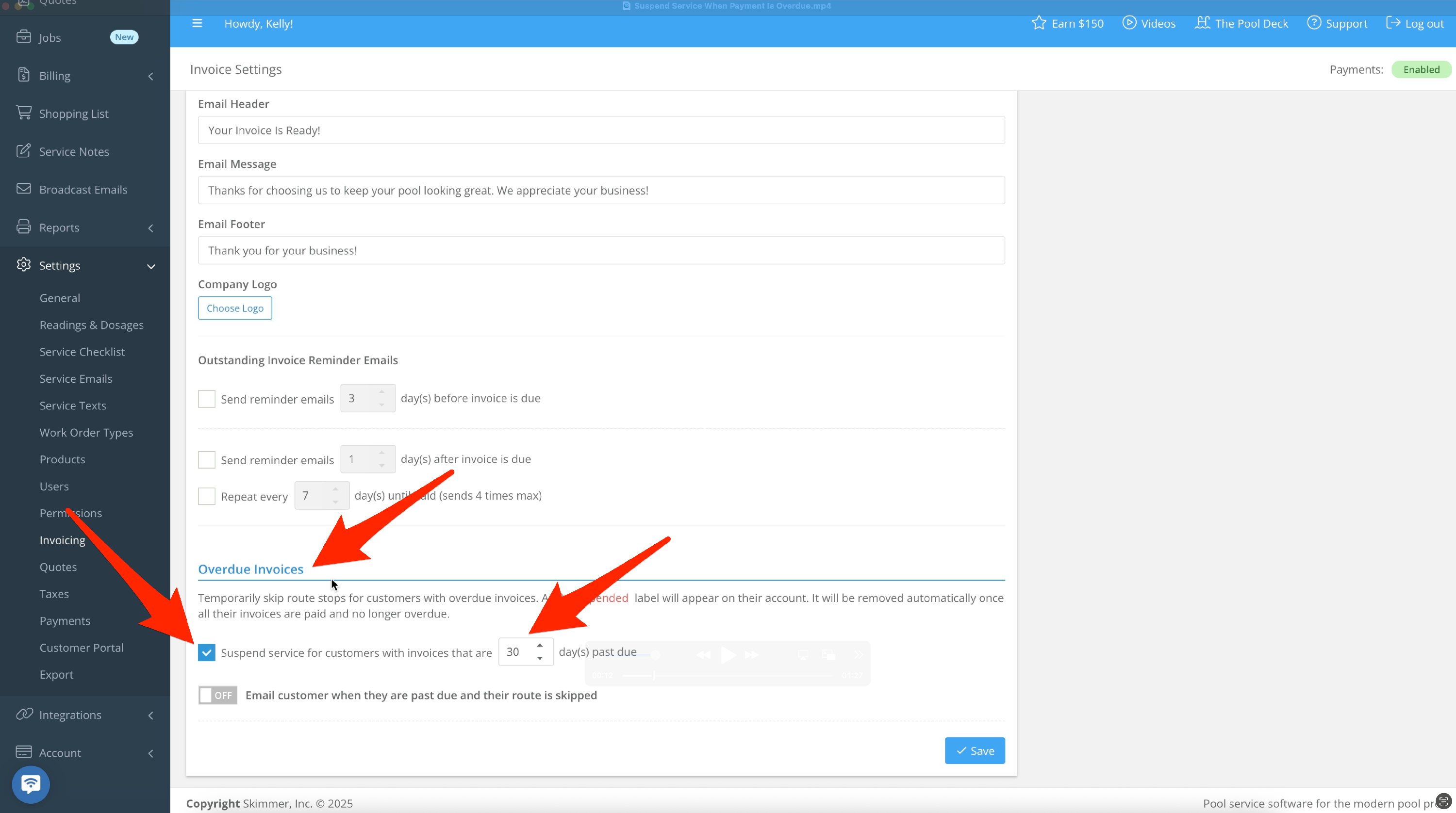
- Skimmer lets you automatically suspend service when invoice payments are overdue. On the website, go to Settings > Invoicing and scroll to the bottom.
-
Find Overdue Invoices. Checking the box will activate this feature, and you can set how many days overdue will trigger the suspension. If an invoice meets the overdue threshold, a suspension will appear on the customer’s account. Service stops will be skipped until they’re no longer overdue, at which point service will resume automatically. When you first toggle this feature on, it may take a little while for Skimmer to process and apply the change to customer status.
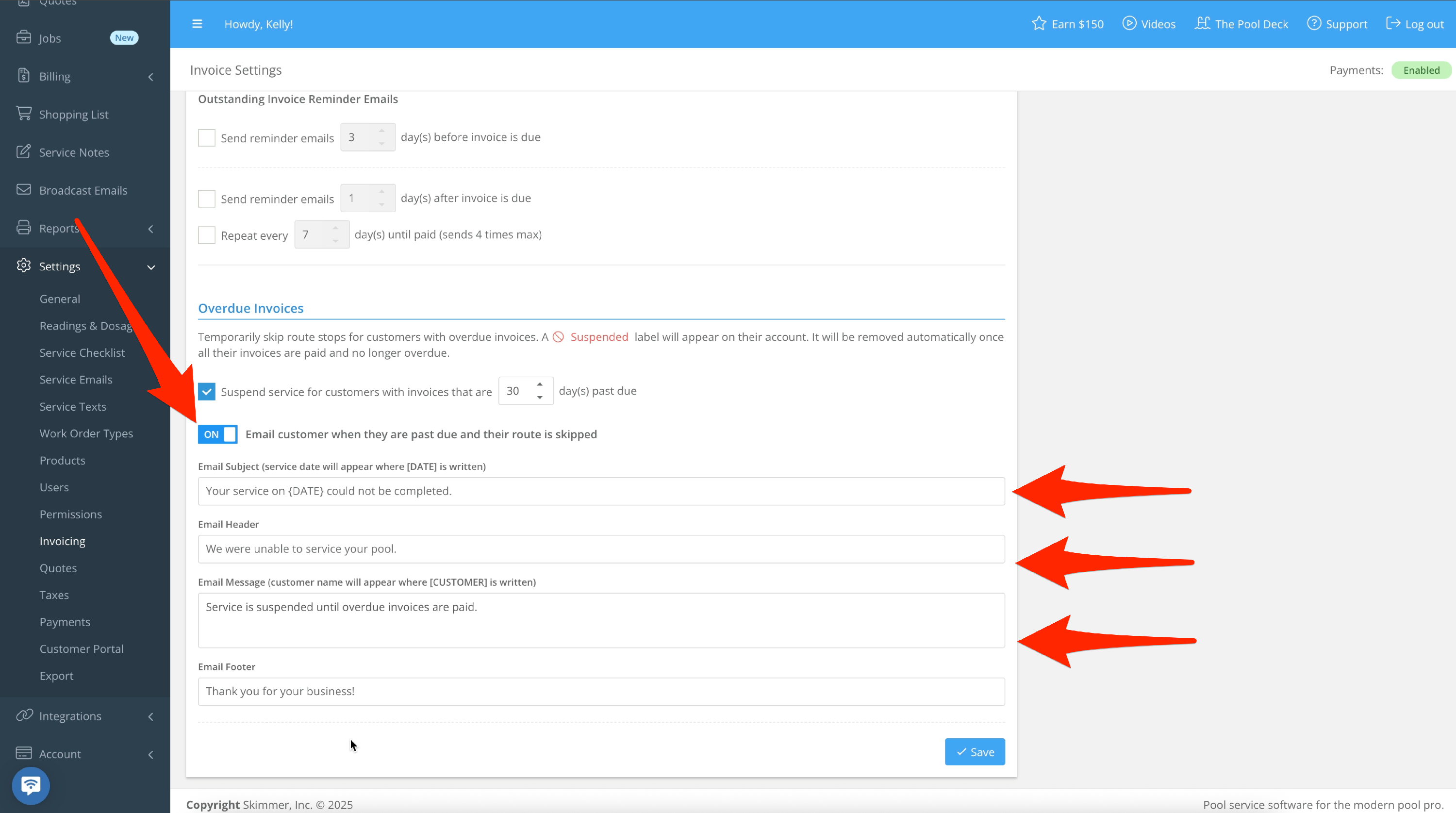
- When you activate this feature, if you want to set up an email for this situation, which will let the customer know their account is past due and service is being skipped, toggle it ON here. Customize the subject, header, and message.
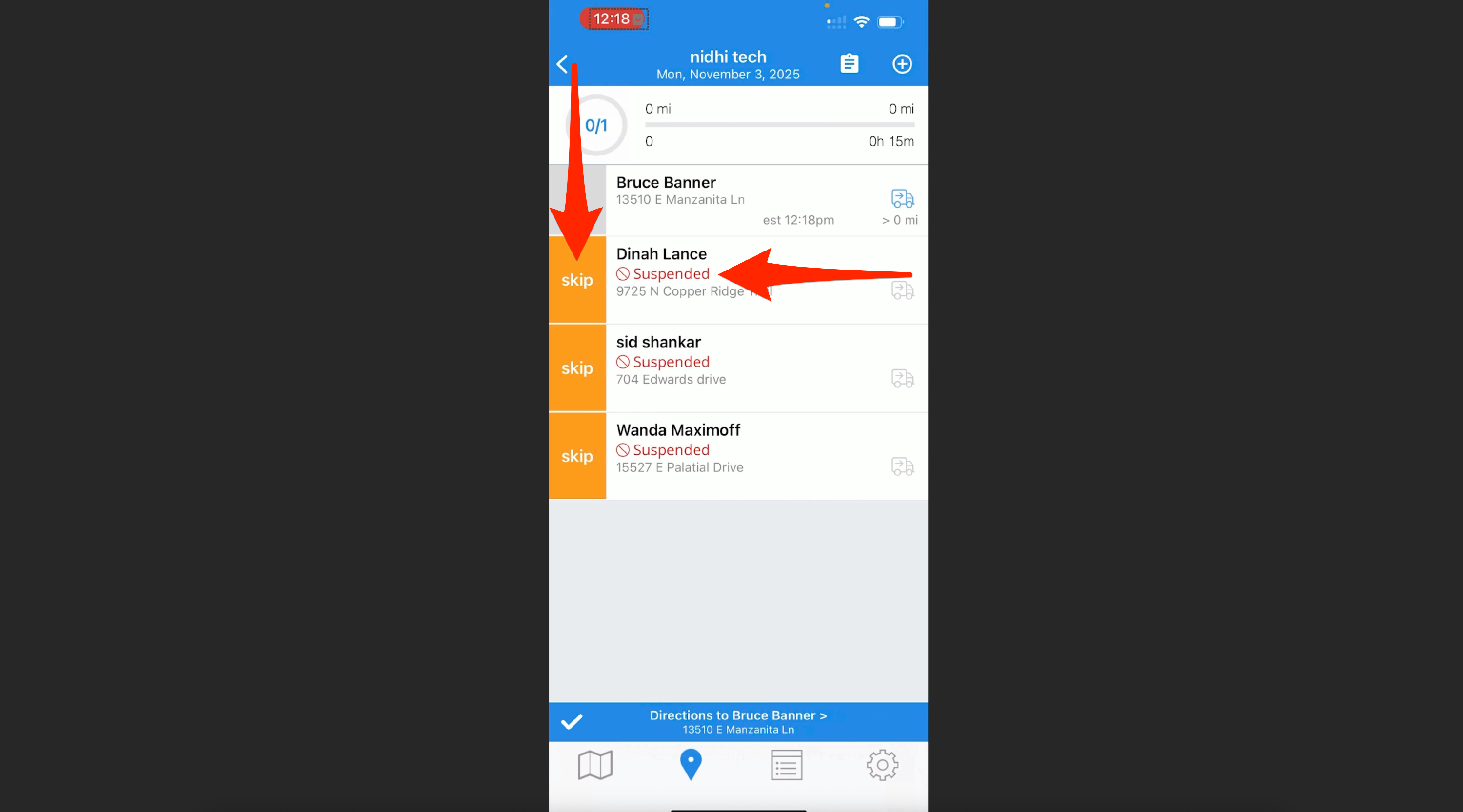
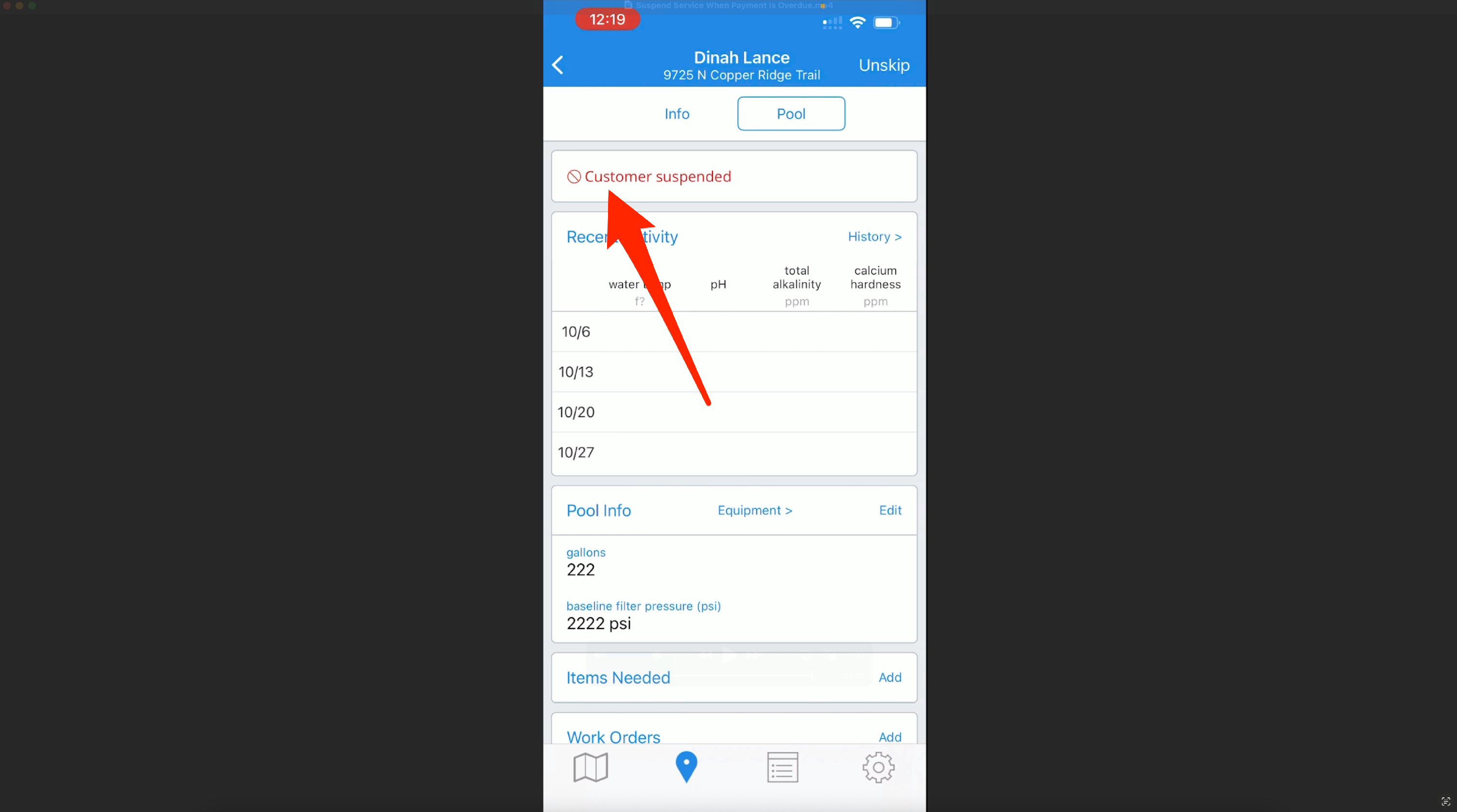
- On the app, when a customer is suspended, that will show under their name, and their route stop is already skipped. Tapping into the route stop will display the suspended condition at the top. If you want to service them anyway, manually unskip the route stop and then complete the work. However, the customer will still show as suspended until their account is current.