AI Phone – Setup
Tiers: All
AI Phone is an embedded AI-powered voice assistant that helps you handle customer calls intelligently. It allows you to spend more time in the field while ensuring your customers get the support and answers they need. AI Phone also helps you turn callers who “just have a few questions” into sales leads, and it's a great way to make sure you never miss incoming calls from clients or potential clients.
Note: AI Phone requires a U.S. phone number. It doesn't support international numbers.
Before you begin
In order to view and set up AI Phone, your user account will need access to the Can view AI Phone page permission.
Consider these questions before you get started:
- Do I want AI Phone to answer all of my calls, missed calls, or only direct calls?
- When do I want AI Phone to transfer a call to a person and which person? For example, do I want all calls requesting a quote to be transferred to someone in Sales?
- Are there any numbers I want to prevent AI Phone from answering? For instance, do I really want the local vinyl siding company to talk to AI Phone?
What Skimmer recommends
- Use AI Phone for missed calls. You answer when you're available; AI Phone handles the rest.
- Save your AI Phone number as a contact so you recognize it when a call is transferred to you.
- Write transfer rules that are specific and action-oriented. For example:
- Transfer to Sales when the caller asks about pricing or wants to make a purchase.
- Transfer to Support when the caller reports a technical issue or needs troubleshooting.
- Transfer to Billing when the caller has questions about their invoice or payment.
- If your business name changes, update it in both your AI Phone knowledge base and your agent customization.
- If you're forwarding calls from Google Voice, turn off Google Voice Call Screening so customers aren't asked for their name twice.
- You may need to look up call forwarding codes for your carrier. AI Phone includes codes for the carriers listed in the table below.
Call forwarding configuration
You may also need to look up the call forwarding codes for your phone carrier. AI Phone is preloaded with the codes for the following carriers:
Carrier activation & deactivation codes
| Activation Codes | Deactivation Codes | ||||
|---|---|---|---|---|---|
| Carrier | All Calls | Missed Calls / No Answer | Carrier | All Calls | Missed Calls / No Answer |
| Verizon Mobile | *72 (XXX) XXX-XXXX | *71 (XXX) XXX-XXXX | Verizon Mobile | *73 | *73 |
| Verizon Landline | *72 (XXX) XXX-XXXX | *92 (XXX) XXX-XXXX | Verizon Landline | *73 | *93 |
| AT&T Mobile | **21* (XXX) XXX-XXXX # | **61* (XXX) XXX-XXXX # | AT&T Mobile | ##21# | ##61# |
| AT&T Landline | *72 (XXX) XXX-XXXX | *92 (XXX) XXX-XXXX | AT&T Landline | *73 | *93 |
| T-Mobile | **21*1 (XXX) XXX-XXXX # | **61*1 (XXX) XXX-XXXX # | T-Mobile | ##21# | ##61# |
| US Cellular | *72 (XXX) XXX-XXXX | *92 (XXX) XXX-XXXX | US Cellular | *720 | *920 |
| Sprint | *72 (XXX) XXX-XXXX | *73 (XXX) XXX-XXXX | Sprint | *720 | *730 |
| Spectrum Mobile | *72 (XXX) XXX-XXXX | *71 (XXX) XXX-XXXX | Spectrum Mobile | *73 | *73 |
| Spectrum Landline | *72 (XXX) XXX-XXXX | *92 (XXX) XXX-XXXX | Spectrum Landline | *73 | *93 |
Set up Google Voice call forwarding
Google Voice uses linked numbers and custom call forwarding rules to route calls to your AI agent. Configure these settings at voice.google.com.
Link your AI number
- In Google Voice, open Settings (gear icon).
- Under Account, select New linked number.
- Enter your AI agent phone number.
- Select Verify by phone (the small blue link). SMS verification may not be available — phone verification is required.
- Google Voice calls your AI number with a verification code. Complete verification in Voice (for example, from the Calls tab via the recording or transcript).
Set up a forwarding rule
- Go to Calls > Create a rule.
- Choose who the rule applies to (for example, All contacts).
- Under Forward to these numbers, select your linked AI number.
- Turn call screening off. If you hear "To accept the call, press 1," screening is still on — return to this setting and disable it.
For more detail, see Use custom call forwarding with Google Voice.
Turn off caller ID when forwarding
This step is required for your AI agent to identify callers correctly.
- Go to Settings > Calls.
- Turn off Show my Google Voice number as caller ID when forwarding calls.
If this setting stays on, the forwarded line receives your Google Voice number instead of each caller's actual number, and your agent can't identify callers correctly.
Note: This setting doesn't apply to Voice calls placed over the internet — those already pass through the caller's real number.
For more detail, see Change caller ID for incoming calls.
Configuring AI phone
AI phone provides a configuration wizard that guides you through the process of training and customizing your AI phone, as well as configuring call transfer rules and call forwarding.
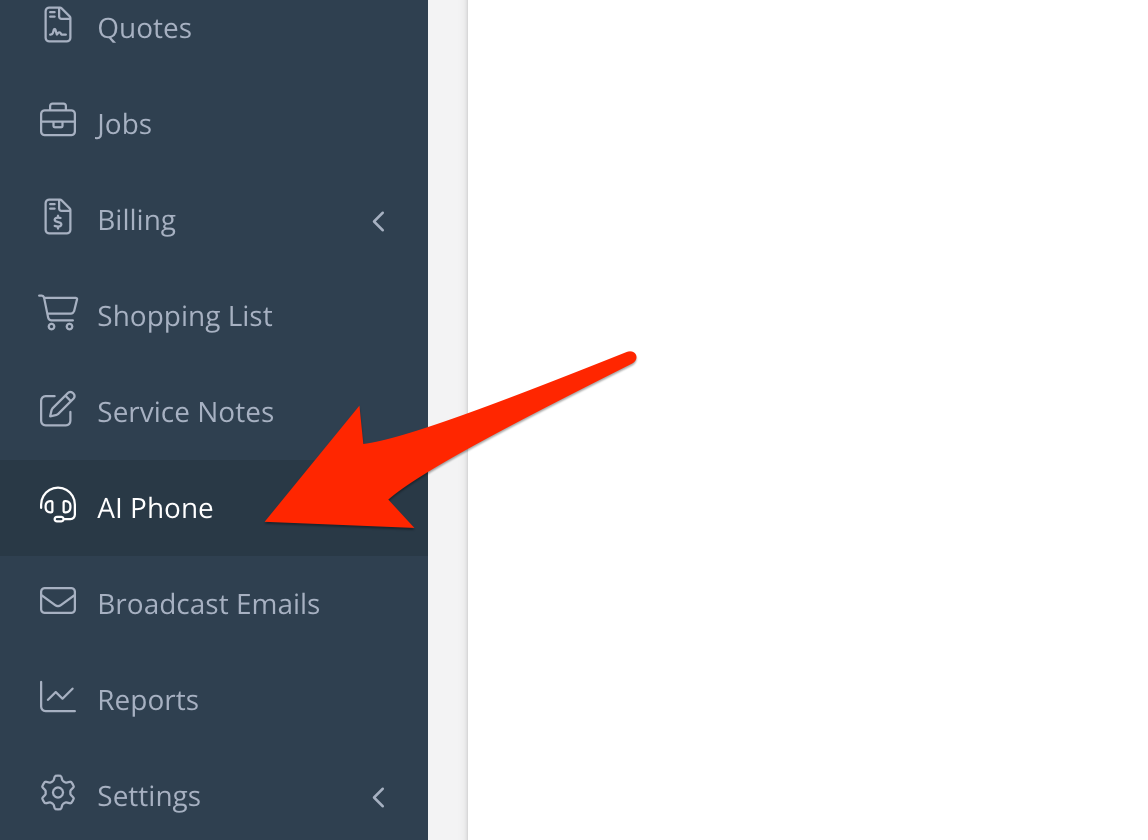
- Click the AI Phone option on the left menu.
- Follow the on-screen prompts to add phone coverage and then confirm your purchase.
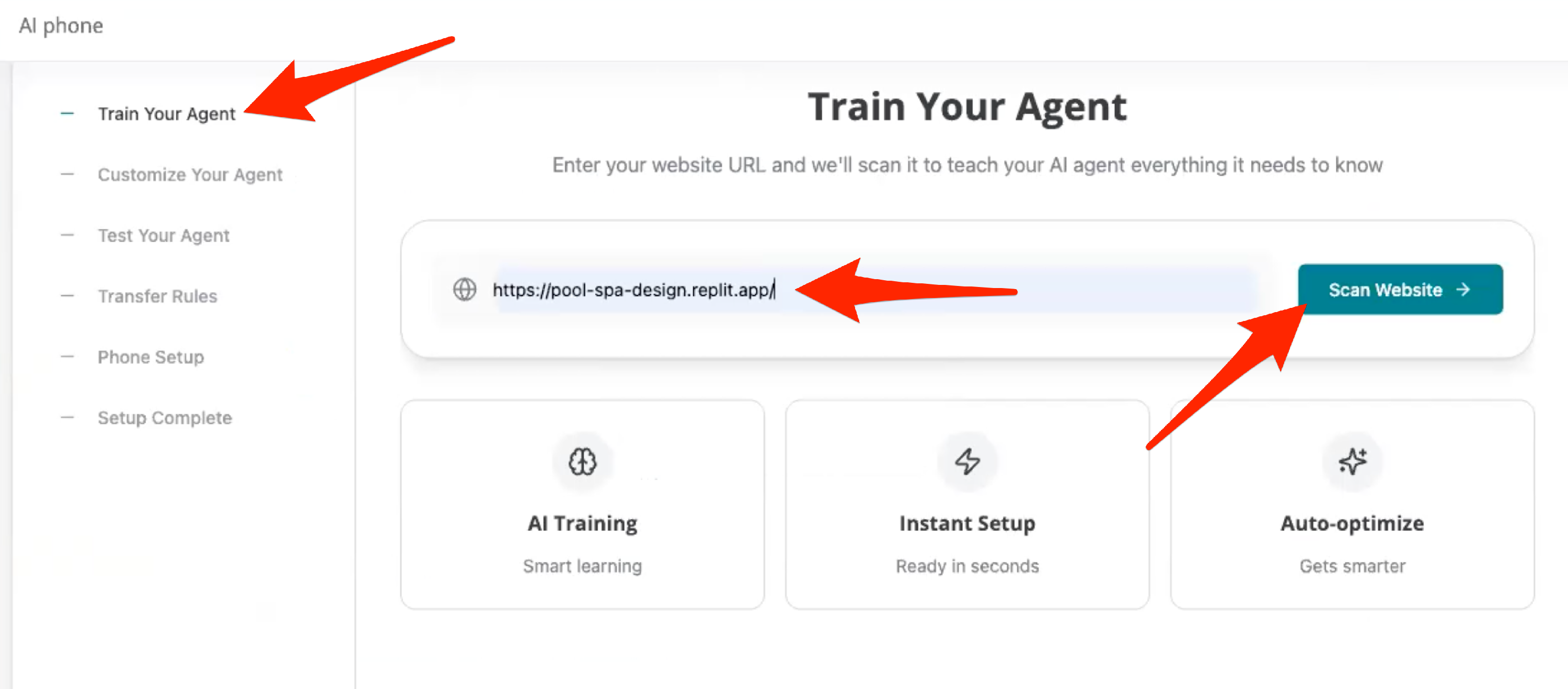
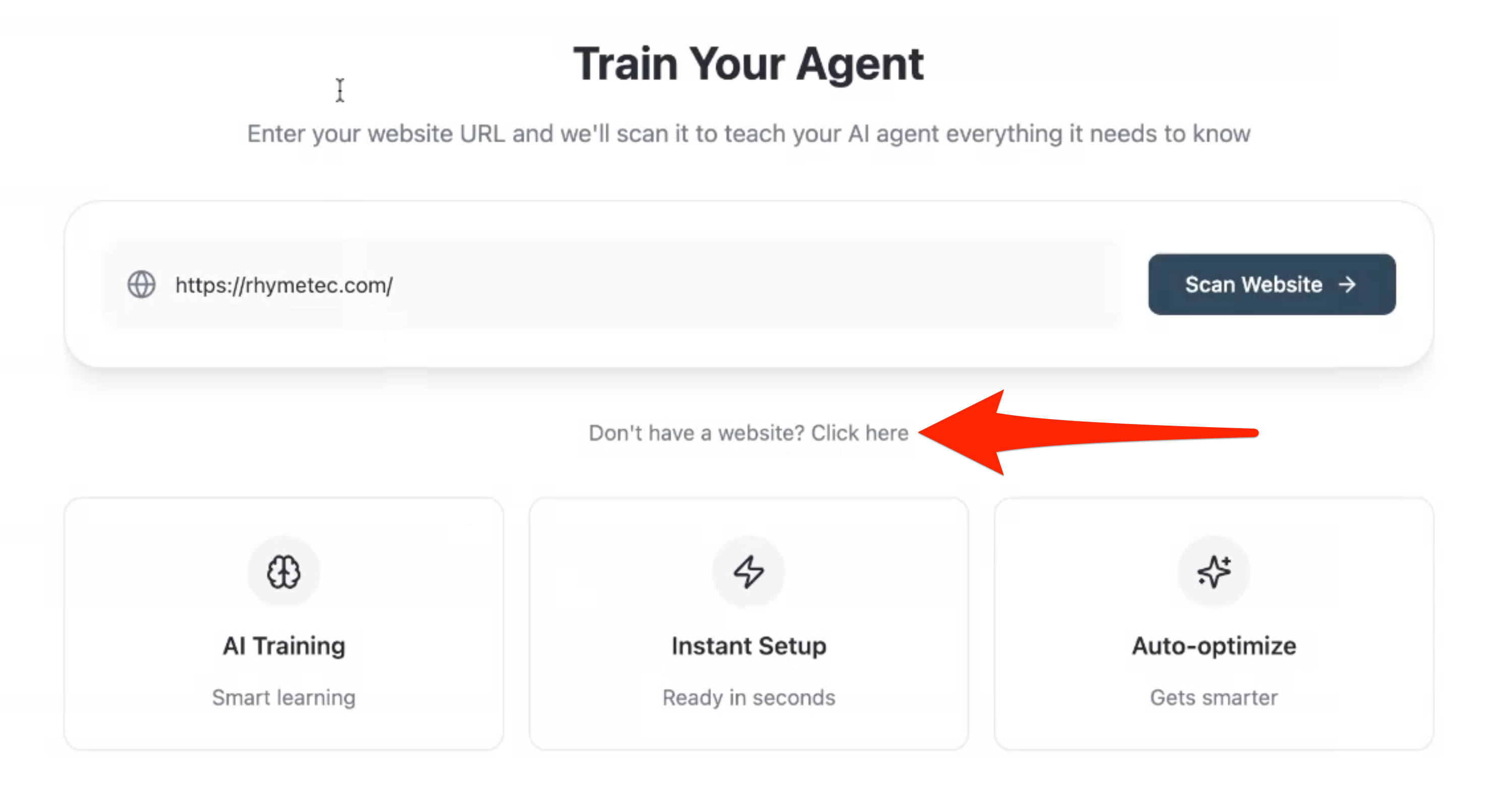
- On the Train Your Agent page, enter your company website and then click Scan Website.
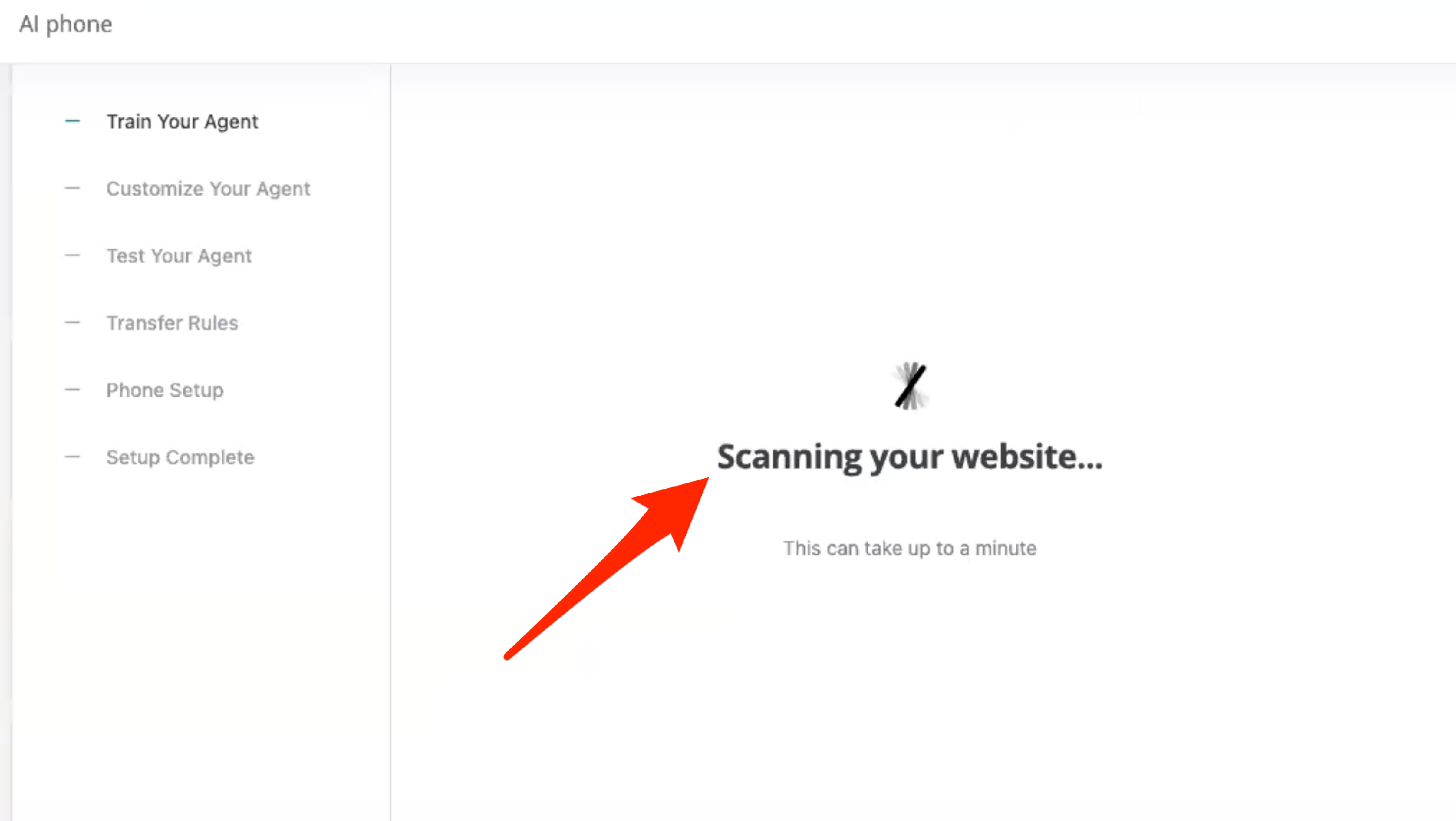
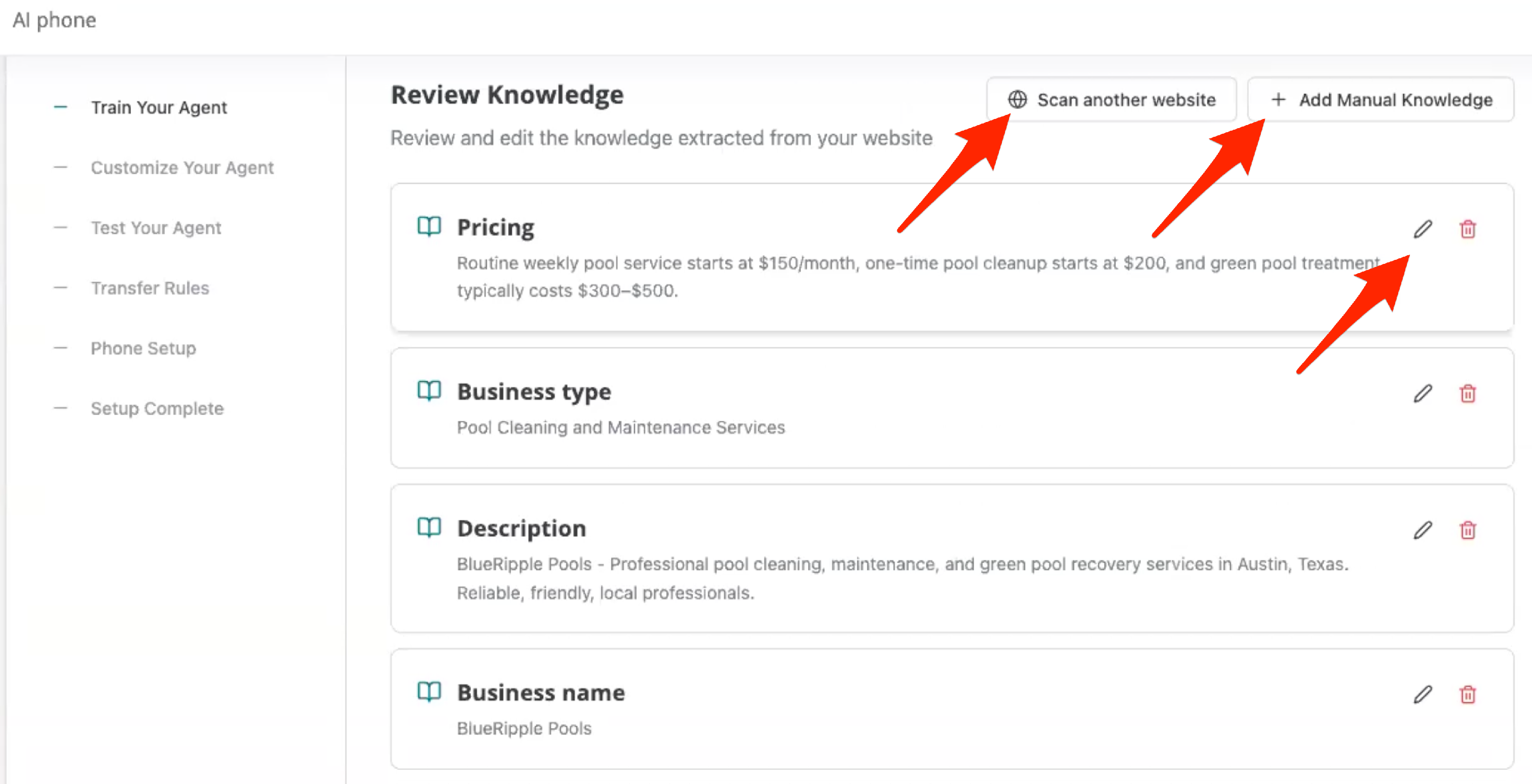
- Skimmer scans your website and uses what it learns to build a knowledge base for your AI Phone. It will learn things like service areas, types of service, locations, names, phones, emails, and contacts. This can take a few minutes based on the volume of information on your site. When the scan is complete, the Review Knowledge page displays the information learned from your website.
- From the review page, you can:
- Edit or delete the information learned from your website. Click the edit (pencil) or delete (trash can) icon next to the knowledge base entry.
- Add information to your AI Phone knowledge base. Click the Add Manual Knowledge button.
- Scan another website for knowledge base information. Click the Scan Another Website button.
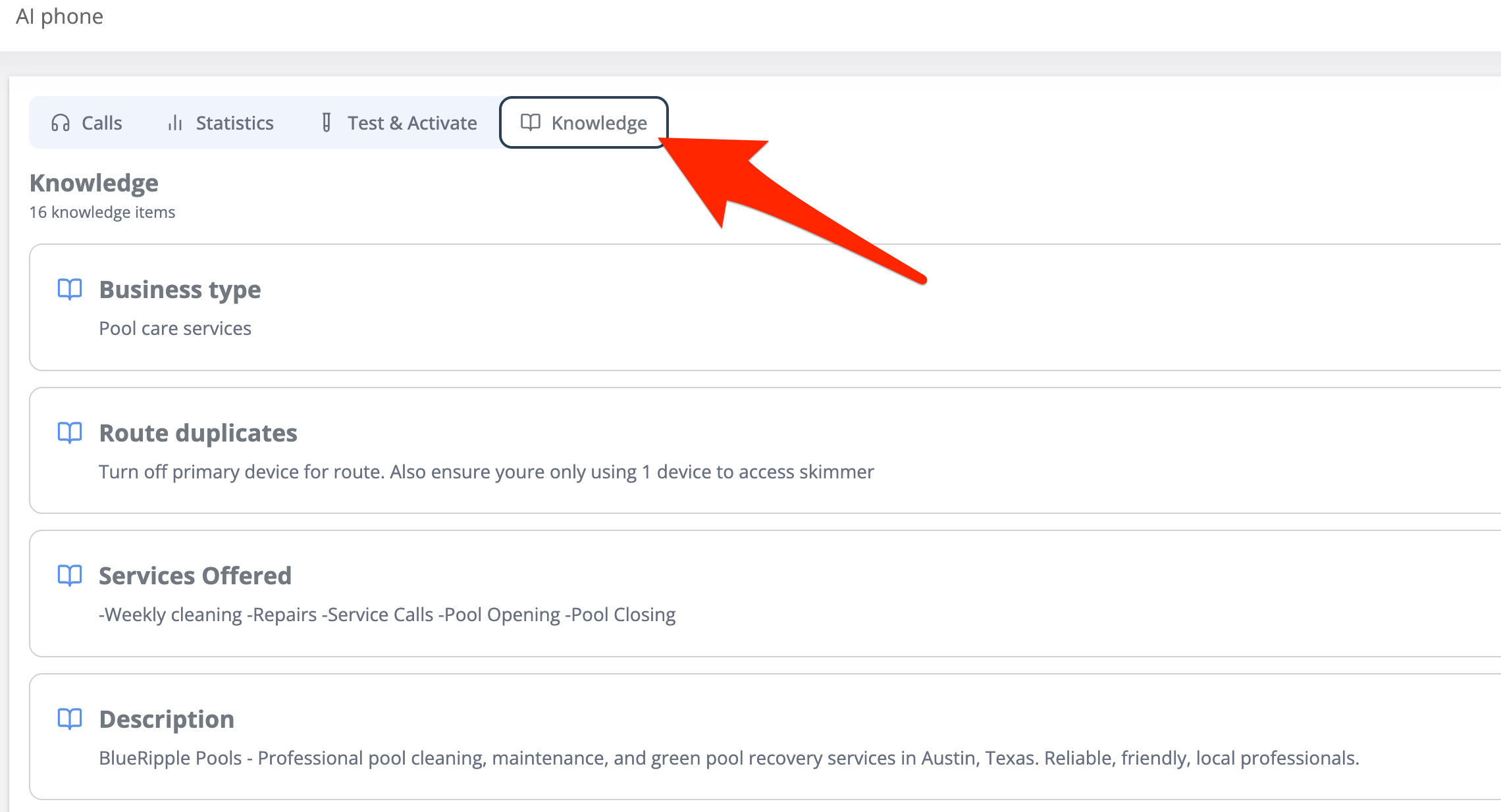
- Use the Knowledge tab under AI Phone to update this information anytime.
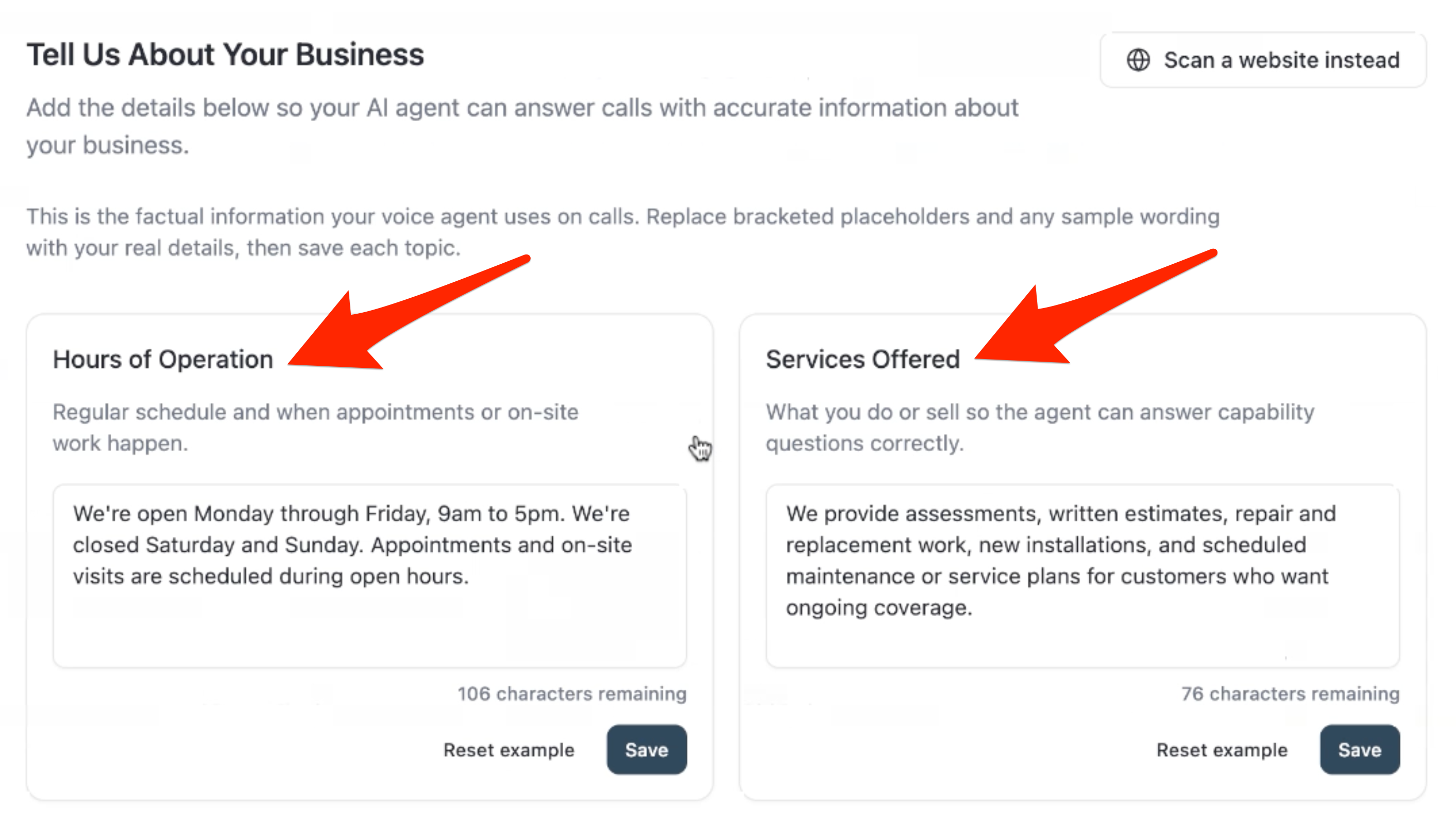
- If you don't have a website, click the button to enter your information manually.
- The Customize Your Agent page allows you to name your agent, select its voice, and customize the agent's greeting. You can change the agent's name, instruct the AI to include your business name, greet your clients by name, and if you wish it can identify itself as an AI agent.
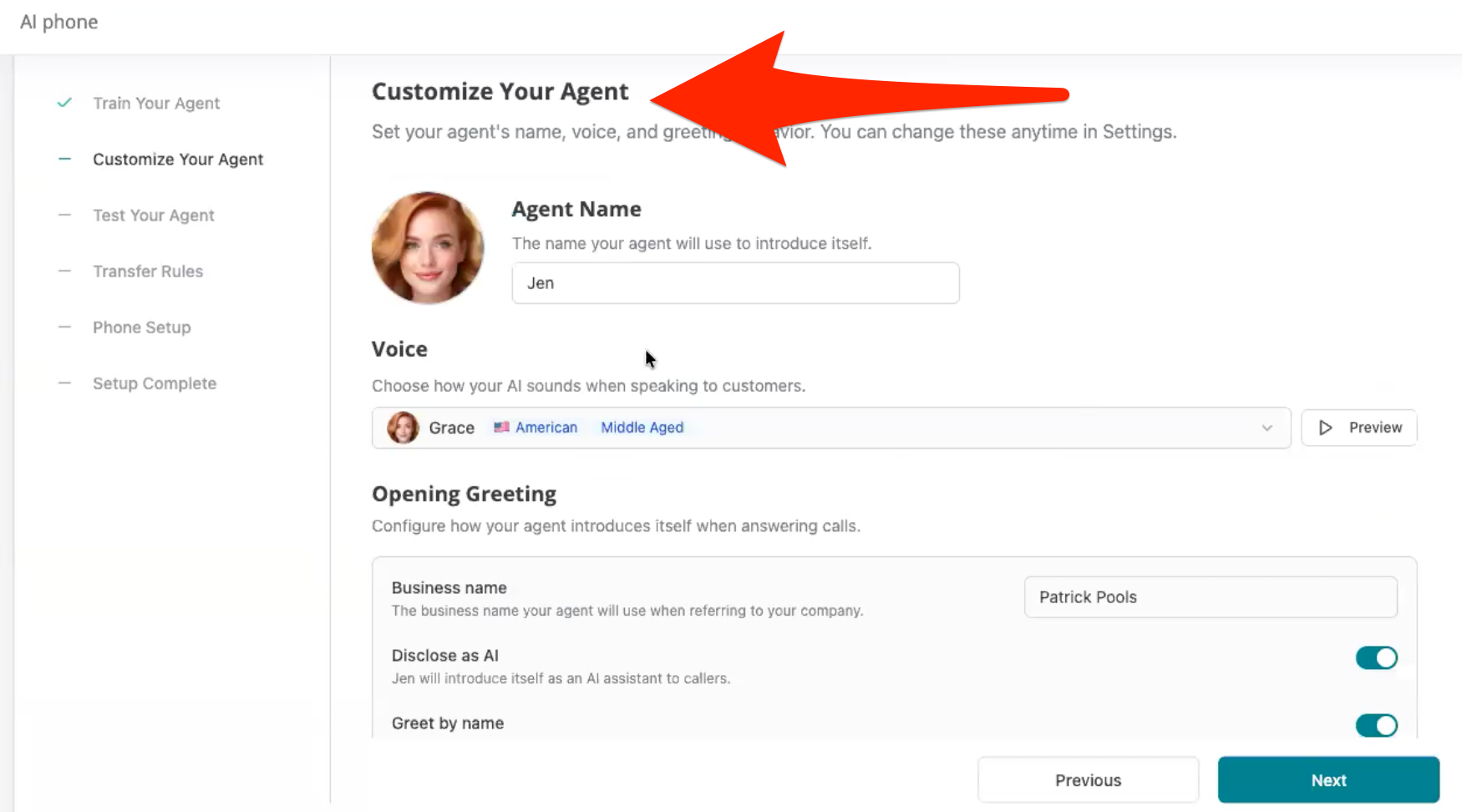
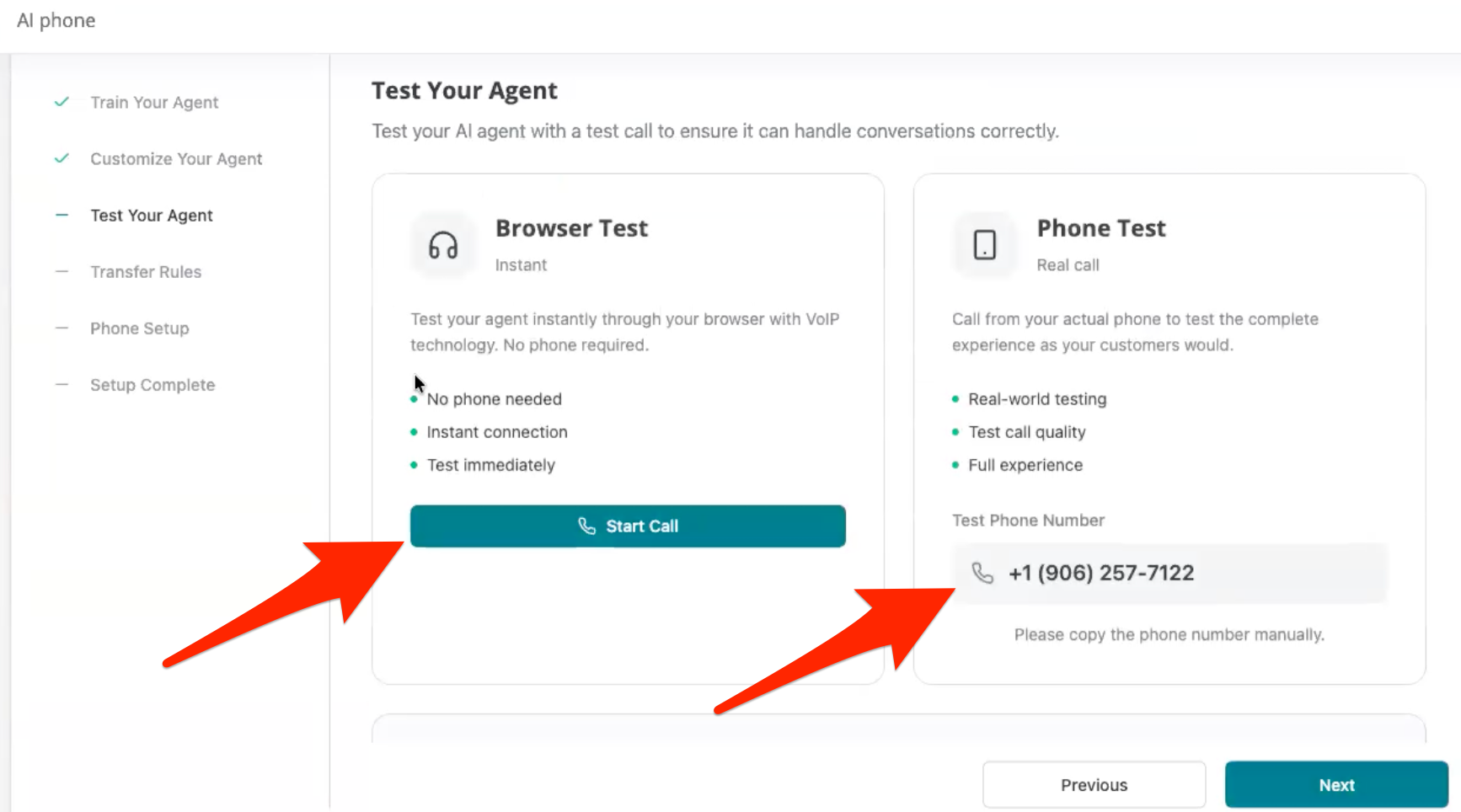
- Click Next. On the following screen, you can test out your AI agent. The browser test option has limited functionality but does allow you to hear what AI Phone sounds like. The phone test option more closely mirrors a real-world call interaction. When you're finished testing, click Next to set up transfer rules.
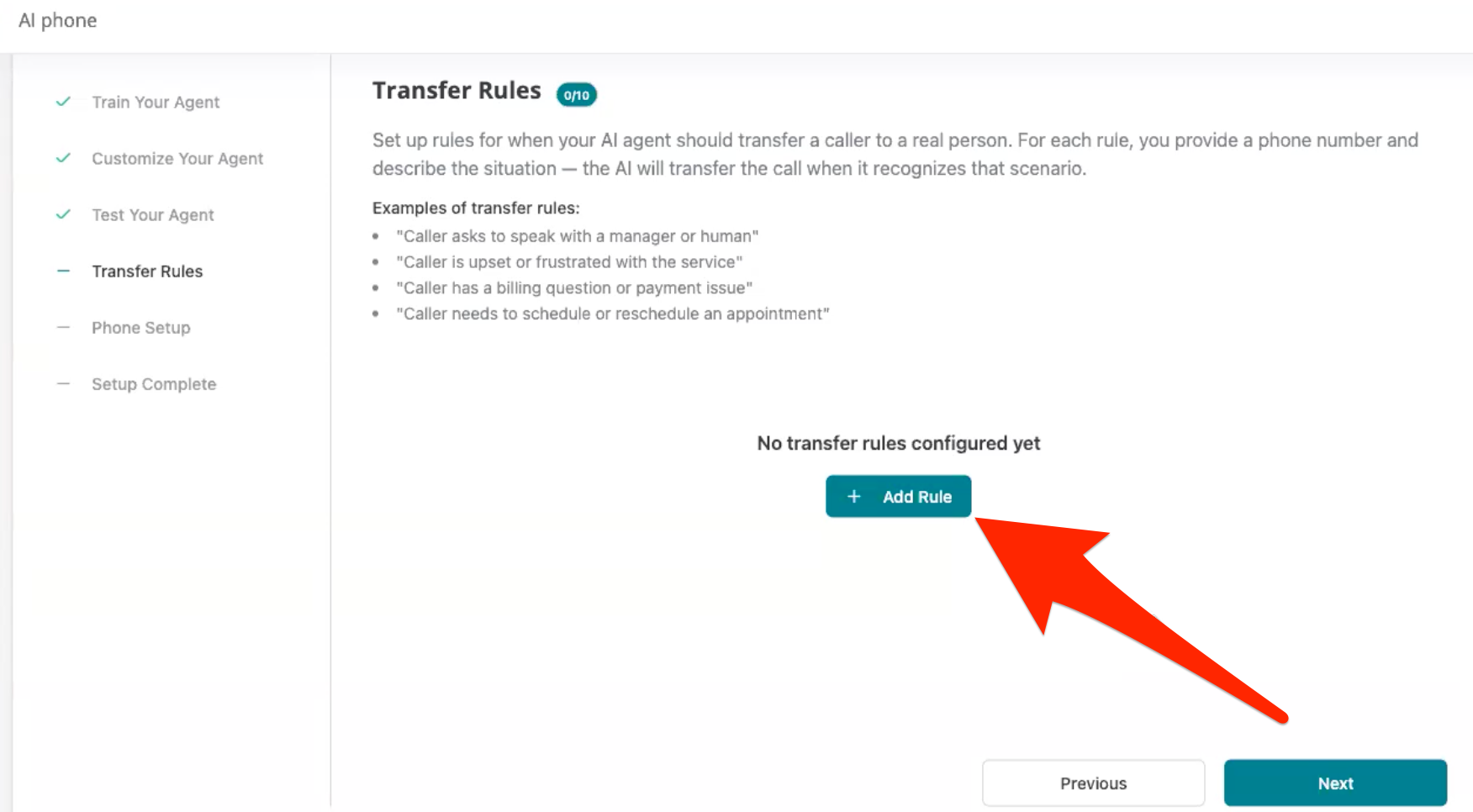
- The Transfer Rules page lets you determine handoff rules for AI Phone, which decides who the AI agent will refer the call to. For example, if your caller asks for a manager, transfer them to your office manager, and if the caller has a billing question, transfer them to accounts payable. For each handoff scenario, you need a transfer rule, which you can create by clicking Add Rule.
Give each rule a name and a description that outlines transfer requirements, as well as the phone number to which the caller will be transferred. It's recommended to word these conditions in a way that a caller might say it, such as "caller needs help" or "wants to talk to a person." The AI agent evaluates the live conversation and compares it to your descriptions, then provides a "warm handoff" that includes a summary of the conversation so far. You can create up to ten transfer rules.
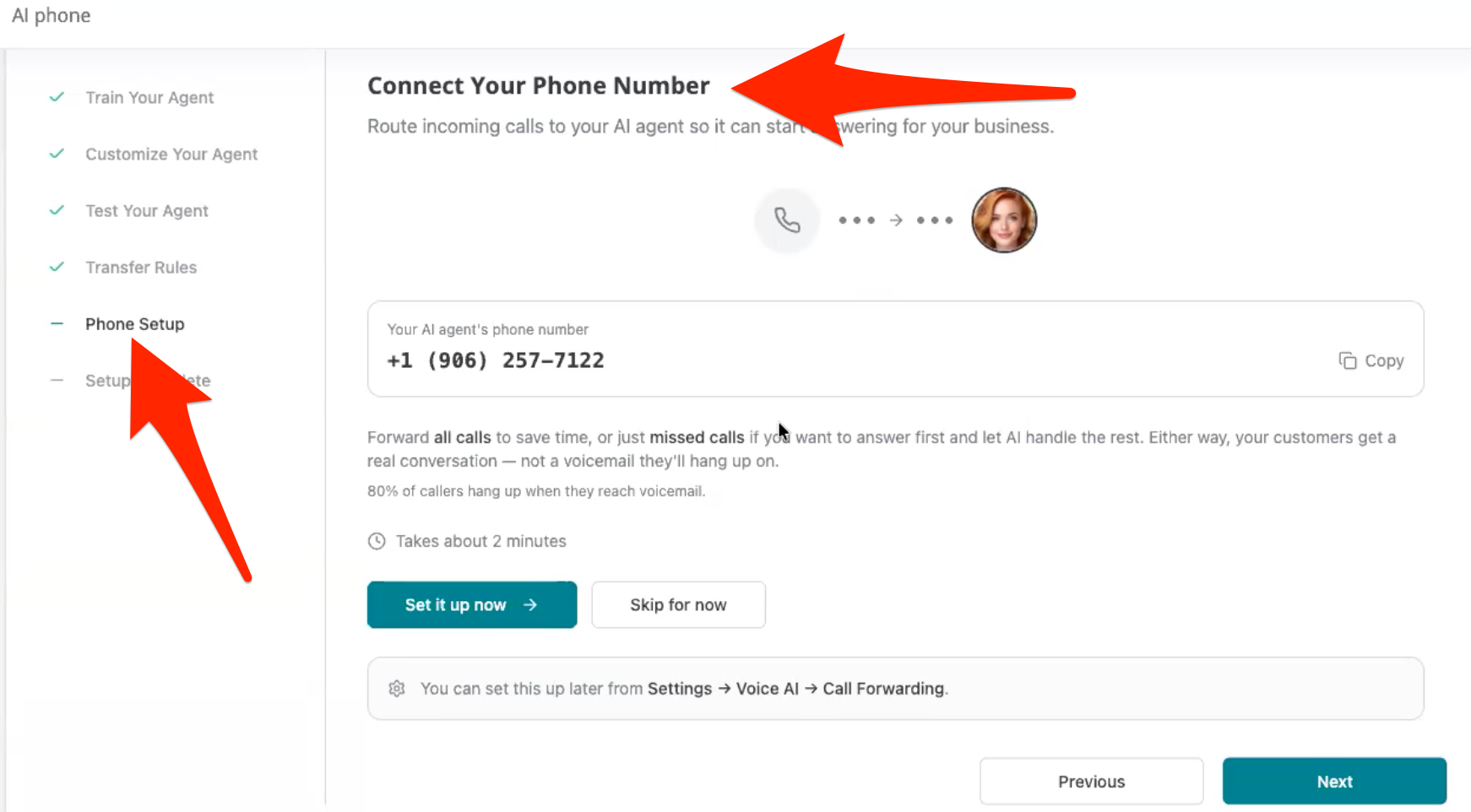
- Now that you've set up transfer rules, it's time to connect your phone number. This page allows you to:
- Forward missed calls or all calls to AI Phone. These options provide call forwarding instructions for several cellular, landline, and VoIP carriers. If your carrier is not listed, you'll need to look up those instructions.
- Replace your current contact number with the AI Phone number. This provides a checklist for updating your contact number, but does not make the changes for you.
- Forward your call to AI Phone and replace your current contact number. This includes instructions for both.
- You also have the option to skip this step and come back to it later.
- iPhone users will need to disable these settings before call forwarding will work:
- Live Voicemail: Go to Settings > Phone and turn off Live Voicemail
- Screen Unknown Callers: Go to Settings > Phone > Silence Unknown Callers and set to "Never"
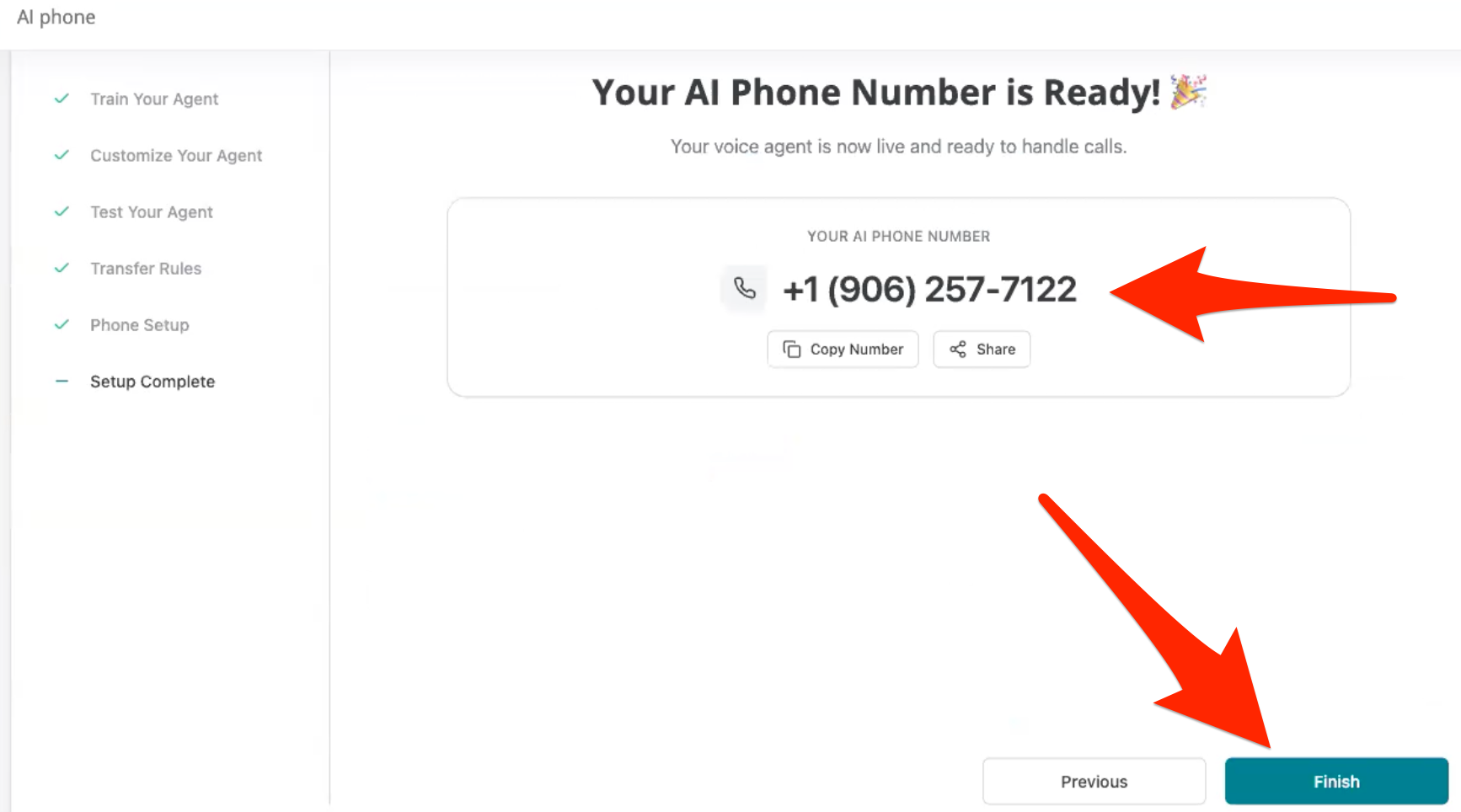
- When you click Next, you'll advance to the final setup page, which displays your new AI Phone number. Click Finish to complete the setup process. You can always return to update your settings.