Skimmer Home
Your Skimmer Home page is home base for your business. Instead of digging through separate screens, you get one view of what needs attention today, how your routes are progressing, and how your business is performing overall.
This article walks through each section of the Home page and what it does.
Permissions
Every section and metric on the Home page follows your account permissions. If you don't have permission to view something, that card or metric doesn't show at all, it won't appear grayed out or blank.
Getting started (new accounts)
If your account is less than 30 days old, your Home page includes a few extra tools to help you get set up:
- An onboarding checklist with a progress bar and time estimates for each step. Completed steps show a checkmark and move out of the way as you finish them
- Options to watch a demo or ask a question if you need help getting started
- Download links for the Skimmer mobile app
- A skip, I work solo option on the invite-your-team step, if you don't need to add technicians yet
The checklist disappears once you complete every step. If you don't complete the setup steps within 30 days, you can click the Dismiss option to close the checklist.
Your greeting and customize button
At the top of the Home page, Skimmer greets you by name. In the top-right corner, select Customize to open a drawer where you choose which sections and metrics appear. See Customize your Skimmer Home page below
 Customize your Skimmer Home page
 Customize your Skimmer Home page
Choose which sections and metrics show up on your Home page:
- Select Customize in the top-right corner of the Home page.
- From the Customize your home window, you can:
- Turn Home page sections on or off - click the toggle to the right of the section to enable or disable its display.
- Customize a Home page section - Click the arrow next to the Needs your attention, Todays Operations, or the Business health metrics section to review the information displayed. You can check an item to display it or uncheck it to remove it from your view.
- Select Save changes to apply your changes.
Your customization settings apply only to your own login, they don't change what other users on your account see.
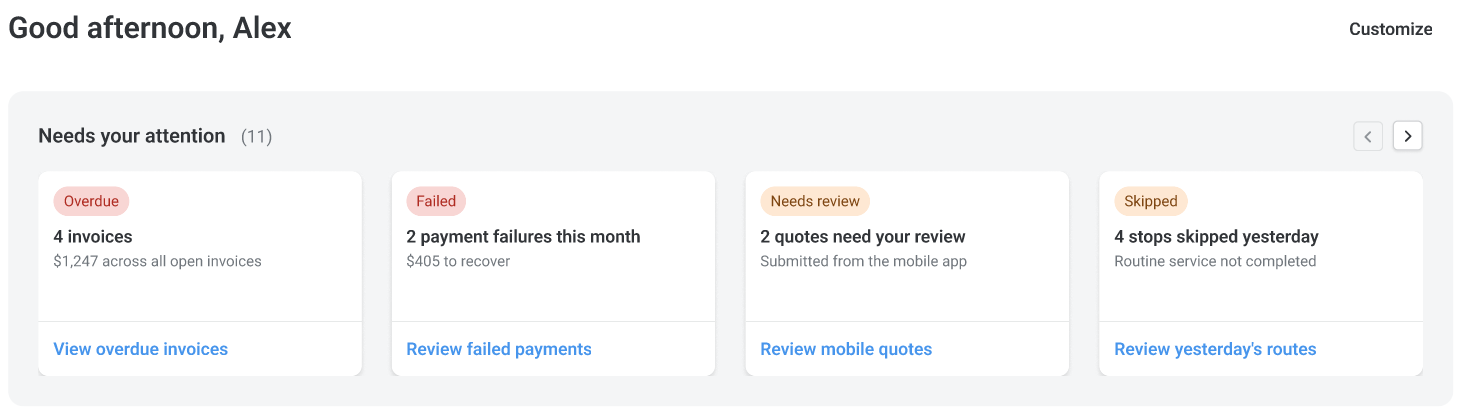
Needs your attention
This section surfaces the items most likely to need action today. Each card shows a count or dollar value and a link that takes you straight to the relevant list. Cards appear only when there's something to act on, if everything's on track, the section doesn't show.

Cards can include:
- Overdue invoices — invoices with an outstanding balance
- Failed payments — payment attempts that failed this week
- Skipped stops — route stops skipped yesterday
- Unscheduled work orders — work orders with no technician assigned, due in the next week
- Unfinished work orders past due — incomplete work orders past their due date
- Unbilled work orders — finished work that still needs an invoice
- Quotes awaiting approval — quotes sent more than 30 days ago with no response
- Quotes pending internal review — quotes flagged for your team to review
- New leads — leads from the past week, with contact details in the drawer
- Technicians running late — techs more than 10 minutes past their scheduled start
On smaller screens, cards scroll in a carousel, 4 at a time on desktop, 2 on tablet, and 1 on mobile. Select the arrows to move between cards, or select a card to open its filtered list or drawer.
Today's operations
This section gives your office a real-time view of how the day's routes are progressing.

- Team totals — total stops, completed stops, service stops, and work orders for the day, with a link to manage today's schedule
- Per-technician progress — each tech's start time (with an on-time or late indicator), stop count, estimated finish time, and a progress bar. Select a technician to see their full stop-by-stop timeline, including customer, work order, service location, and status
- Work orders to assign — today's work orders that still need a technician. Select Edit next to any work order to assign it
Business health
The Business health section gives owners a quick snapshot of performance, with links out to full reports for more detail.
 Key metrics cover a 30-day window by default: estimated revenue, customers serviced, skip rate, and total chemical cost. However, you can click the date field to select a different time period. Select the ? next to any metric for a quick explanation, or select the link below it to view the full report.
The Ask about your business button opens an AI Insights drawer where you can ask questions about your business in plain language. To access this option, you must have the Can view AI Insights permission.

Instant Payouts and Working Capital
The Business health section also displays information and offers for Instant Payouts and Working Capital. Owners set up for instant payouts can request a payout of their available earnings directly from the Home page, without waiting for the next scheduled payout.

Eligible owners can also view Working Capital financing offers.