
PoolCorp Product Sync
Keep your Product Catalog current with PoolCorp costs, without retyping them. After you connect your POOL360 account, Skimmer brings in the PoolCorp products you buy most and updates their details and costs every night.
With PoolCorp product sync, you can:
- Import the products you buy most often from your PoolCorp purchase history.
- Keep costs up to date automatically, so your prices stay accurate.
- Use PoolCorp and Heritage together, and choose which supplier's price shows for each item.
You need an active POOL360 account and the Can view PoolCorp integration settings page permission to complete setup. By default, only the Admin role has this permission, but you can also add it to a custom role.
Connect your account
- From the left navigation menu, select Integrations Center.
- Under Available Integrations, find the PoolCorp tile and click Connect.
- From the PoolCorp page, click Connect to POOL360.
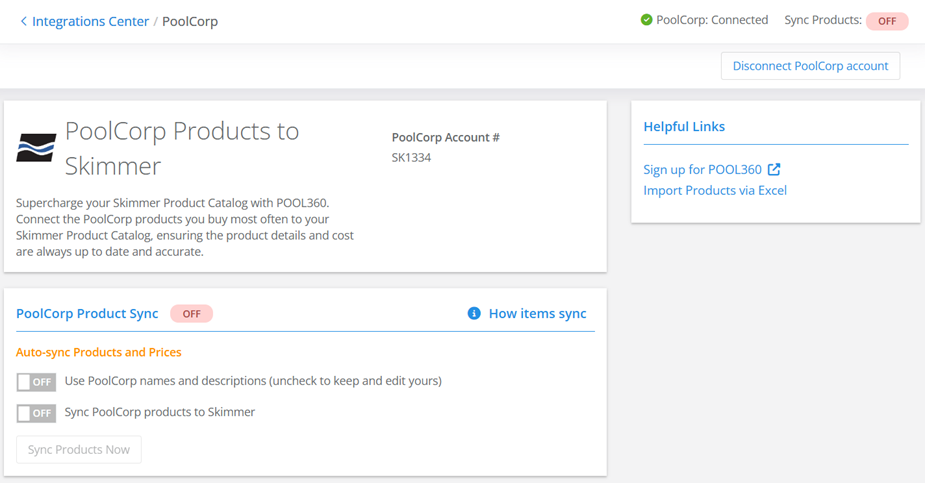
- Enter the Email Address and Password for your POOL360 account, then click Sign in.
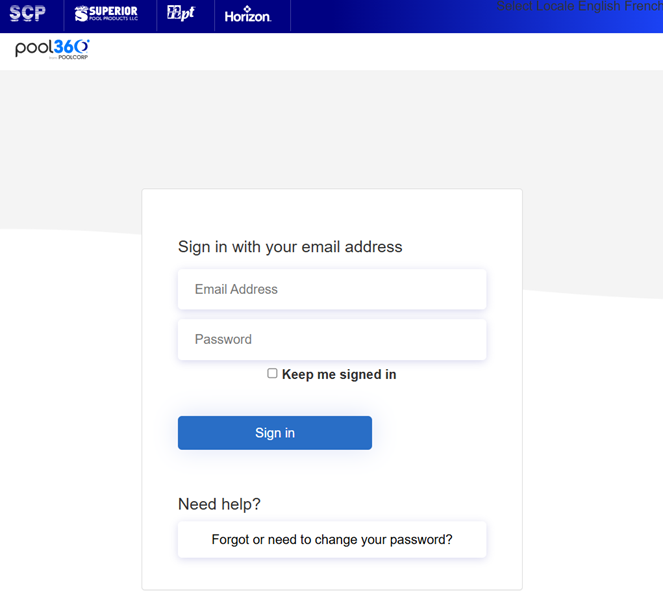
- After you sign in, Skimmer briefly shows a Connecting to POOL360 screen that says "Recording your PoolCorp information in Skimmer." When the connection is active, the top right of the page shows PoolCorp: Connected. Back on the Integrations Center, the PoolCorp tile moves to the Connected Integrations section and shows a Manage button in place of Connect.
Turn on product sync
After you connect to PoolCorp, the PoolCorp product sync section defaults to OFF. Under the Auto-sync Products and Prices section, you choose how PoolCorp products sync into Skimmer.
Turn on Sync PoolCorp products to Skimmer to open the Map PoolCorp Products page. Nightly sync starts after you import your mapped products. Cost, MFG # and unit of measure update every night. Name and description update only when Use PoolCorp names and descriptions is on. Skimmer doesn't change your markup, categories, taxable or discontinued settings. If a product uses markup, its price is recalculated from the new PoolCorp cost.
- On the PoolCorp page, toggle the following options to choose how you want product names, descriptions, and prices handled:
- Use PoolCorp names and descriptions: Turn this on to update your products with PoolCorp's names and descriptions. Leave it off to use your own.
- Sync PoolCorp products to Skimmer: Turn on this option to open the Map PoolCorp Products page so you can match products in Skimmer with products in the PoolCorp catalog. See the Map your products section below.
Map your products
Mapping matches your PoolCorp products to the products already in your Skimmer Product Catalog. Skimmer pulls products from your POOL360 Buy Again list.
- On the Map PoolCorp Products page, review the product list.
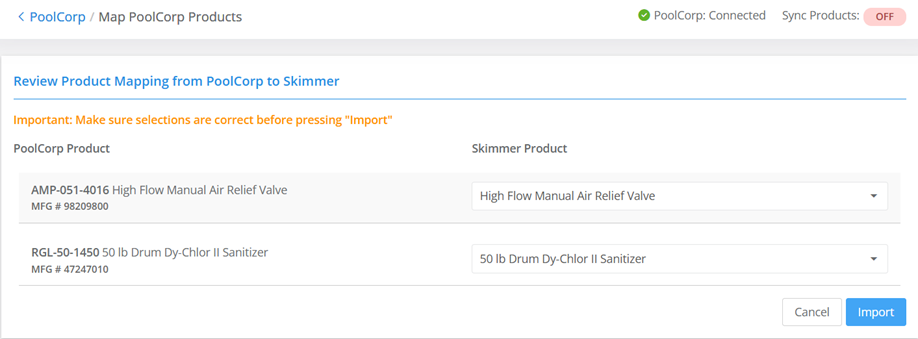
- For each product, use the dropdown in the Skimmer Product column to choose one of the following options:
- Create new Skimmer product: Adds the PoolCorp product to your Product Catalog.
- Do not sync this product: Leaves the product out of your catalog.
- An existing Skimmer product: Skimmer pre-selects an existing product when its name exactly matches the PoolCorp description, or when it's already mapped to that PoolCorp item. Otherwise the default is Create new Skimmer product.
- Check your selections. Skimmer reminds you to make sure they're correct before you import.
- Click Import. When the import finishes:
- Skimmer shows Products mapped successfully. Nightly sync is now on.
- The product sync begins and Skimmer shows a Sync Running progress bar.
- The PoolCorp Product Sync label changes to ON.
- The Sync Products Now button becomes available.
Keep your products up to date
Once a product is mapped, Skimmer updates its product information from PoolCorp every night, around 1–2 AM Eastern. If you use markup, Skimmer applies your markup to the new cost. Price changes reach the mobile app the next time a tech syncs.
To sync right away instead of waiting for the nightly sync:
- Locate the PoolCorp tile on the Integrations Center page.
- Click Manage.
- From the PoolCorp page, click Sync Products Now.
Choose your default supplier
The Supplier option on the Products page is only displayed for companies with both Heritage and PoolCorp integrations connected. If you've connected both Heritage and PoolCorp and a product is available from and linked to both suppliers, your default supplier decides which price Skimmer uses. Until you choose, Skimmer uses Heritage.
- From the left navigation menu, select Settings, then select Products.
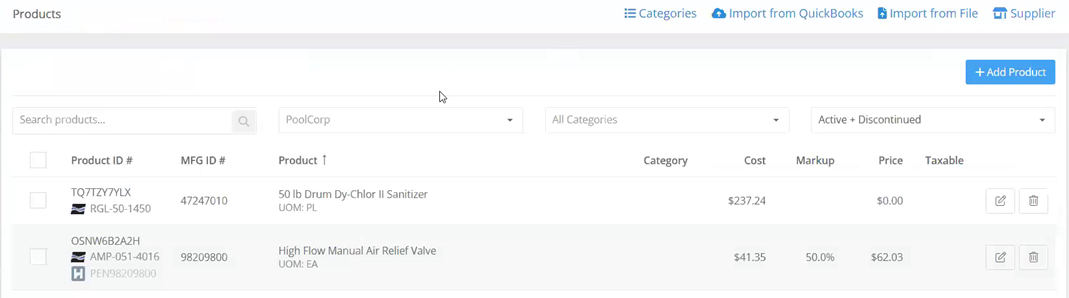
- Click Supplier at the top of the page. The Choose your default supplier pricing window opens.
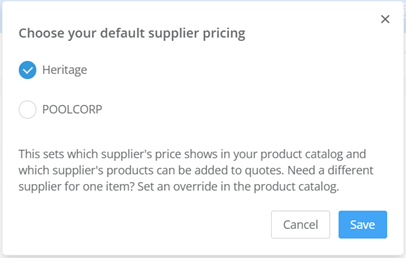
- Select Heritage or PoolCorp.
- Click Save. For items available from both suppliers, your default supplier sets which supplier's price shows in your Product Catalog and which supplier's products can be added to quotes.
Override a product's default supplier
If you've connected both Heritage and PoolCorp, you can override your default supplier at the individual product level for products available from both suppliers.
- From the left navigation menu, select Settings, then select Products.
- Locate the product you want to update.
- Click the edit icon.
- From the Edit Synced Product window, click the Choose supplier pricing field to select a supplier for this product only. When you change the product's supplier, the new unit cost is displayed above the Markup Type field.
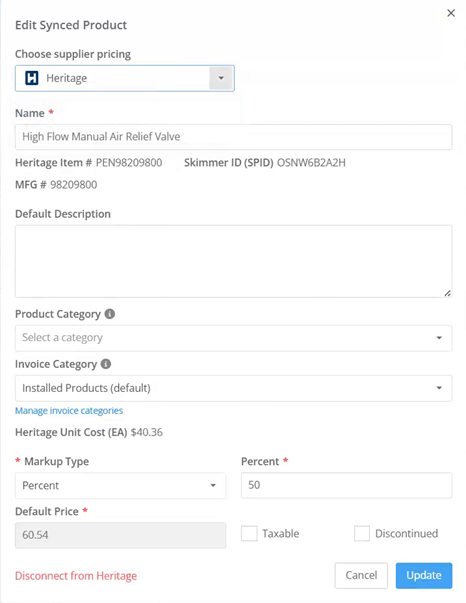
- Click Update to save your change.
View your PoolCorp products
On the Products page, the Product ID # column displays a Heritage and/or PoolCorp logo for products based on the supplier. For example, if a pump is available from Heritage and PoolCorp but you've selected PoolCorp as the supplier, both logos are displayed but the Heritage logo is greyed out.

In addition, the Supplier filter on the Products page allows you to filter the products list based on the supplier: Heritage, PoolCorp, and/or No Supplier.
- From the left navigation menu, select Settings, then select Products.
- To see only products from one supplier, open the All Suppliers filter and select PoolCorp. Filters stay applied while you stay in the same browser session.
Import additional products
Use a file import to add products beyond the ones you mapped. The How to Import Products section of the Upload Products From File page gives detailed instructions for downloading, editing, and importing your product file.
- From the left navigation menu, select Settings, then select Products.
- Click Import from File.
Note: You can also select Import Products via Excel under Helpful Links on the PoolCorp page.
- Choose one of the following options:
- Download a template to add new products (.CSV)
- Export and update existing Skimmer products (.CSV)
- Add your changes and any PoolCorp IDs to the .CSV file. Name the column: PoolCorpId. The optional PreferredSupplier column sets the supplier for each item. Leave it blank to use the default.
- Click Select File & Import, then select your file and click Open.
- On the Import Products page, review the product list. Use the Search field to find a specific product. If you need to change your file, click Start Over.
- When your file is ready, click Import N Products (for example, "Import 12 Products"). Then click Import in the confirmation window.
- In the confirmation window, click OK to open the Products page and review your changes.
Disconnect or delete a product
If you no longer want a product to sync with PoolCorp, you can disconnect it on its own. Your other products keep syncing, and your PoolCorp account stays connected.
Disconnect a product from PoolCorp
- From the left navigation menu, select Settings, then select Products.
- Locate the product you want to update.
- Click the edit icon.
- From the Edit Synced Product window, click Disconnect from PoolCorp.
- The Disconnect product from PoolCorp window prompts you to confirm by clicking Disconnect Product. Skimmer stops nightly updates of the product and removes the product mapping.
Delete a product
Products linked to PoolCorp can't be deleted until you unmap them.
- Disconnect the product from PoolCorp using the steps above.
- From the Products page, delete the product.
Disconnect PoolCorp
Disconnecting your PoolCorp integration removes PoolCorp mappings from ALL products and stops nightly updates. Products linked only to PoolCorp become editable. Products also linked to Heritage switch to Heritage pricing.
- From the left navigation menu, select Integrations Center.
- Click Manage on the PoolCorp tile.
- Click Disconnect PoolCorp account.
- From the Disconnect your PoolCorp account? window, confirm your choice by clicking Disconnect PoolCorp account.
PoolCorp Product Sync FAQ
Getting started
What is PoolCorp product sync?
PoolCorp product sync connects Skimmer to your POOL360 account. Skimmer brings in the PoolCorp products you buy most and updates their details and costs every night, so you don't have to retype them.
What do I need to set it up?
You need an active POOL360 account and the Can view PoolCorp integration settings page permission. PoolCorp product sync is available on the Scaling Up tier and above.
Do I need Heritage to use PoolCorp product sync?
No. PoolCorp product sync works on its own. Choosing between suppliers only matters if you connect both PoolCorp and Heritage.
Does PoolCorp product sync include ordering?
No. PoolCorp product sync covers products and prices only. Ordering from PoolCorp through Skimmer and live availability at PoolCorp branches aren't available at this time.
Does Skimmer share my data with POOL360?
No. Skimmer doesn't share any data from your Skimmer account with POOL360. Product information flows from POOL360 to Skimmer.
Products and mapping
Which PoolCorp products does Skimmer bring in?
Skimmer pulls products from your POOL360 Buy Again list.
What are my options when I map a product?
For each product, you choose one of three options in the Skimmer Product column:
- Create new Skimmer product: Adds the PoolCorp product to your Product Catalog.
- Do not sync this product: Leaves the product out of your catalog.
- An existing Skimmer product: Skimmer pre-selects an existing product when its name exactly matches the PoolCorp description, or when it's already mapped to that PoolCorp item. Otherwise the default is Create new Skimmer product.
Can I add more PoolCorp products after the first import?
Yes. You have two options:
- Map your latest PoolCorp products. On the PoolCorp page, click How items sync, then select Review and Map Latest PoolCorp Products. This reopens the Map PoolCorp Products page, where you choose an option for each product and click Import.
- Import from a file. On the Products page, select Import from File. You can also select Import Products via Excel under Helpful Links on the PoolCorp page.
Nightly sync
How often does Skimmer sync PoolCorp products?
Skimmer syncs every night, around 1–2 AM Eastern, after you import your mapped products. To sync right away, select Manage on the PoolCorp tile in the Integrations Center, then select Sync Products Now.
What does the nightly sync update?
The nightly sync updates cost, MFG # and unit of measure. Name and description update only when Use PoolCorp names and descriptions is on. Skimmer doesn't change your markup, categories, taxable or discontinued settings. If a product uses markup, its price is recalculated from the new PoolCorp cost.
Will the sync change my pricing or markup?
Skimmer doesn't change your markup, categories, taxable or discontinued settings. If a product uses markup, its price is recalculated from the new PoolCorp cost.
When do updated costs show up in the mobile app?
Price changes reach the mobile app the next time a tech syncs.
Using PoolCorp and Heritage together
How does Skimmer know a PoolCorp product and a Heritage product are the same item?
Skimmer doesn't link Heritage and PoolCorp items automatically. An item is available from both when you map the PoolCorp product to a Skimmer product that's already linked to Heritage, on the mapping page or with the PoolCorpId column in a file import.
Which supplier's price do I see?
For products available from both suppliers, you see the default supplier's price specified at the company or product level.
Why don't I see the Supplier option on the Products page?
The Supplier option only appears for companies with both Heritage and PoolCorp connected.
Can I use a different supplier for one item?
Yes. On the Products page, select the edit icon for the product, choose a supplier in the Choose supplier pricing field, then select Update. This overrides your default supplier for that product only.
Can I change the supplier for many products at once?
To change the supplier for several products at once, select them on the Products page, then click Change Supplier.
Can I see PoolCorp and Heritage prices?
To compare, switch the supplier on the product and check the unit price shown above the Markup Type field.
How can I tell which supplier a product comes from?
The Product ID # column on the Products page shows a Heritage logo, a PoolCorp logo, or both. If a product is available from both and you've selected PoolCorp, both logos appear and the Heritage logo is greyed out. You can also use the supplier filter to show products from Heritage, PoolCorp, or No Supplier.
Which supplier's price do quotes use?
For items available from Heritage and PoolCorp, quotes use the company or product-level default supplier.
Does Skimmer send the supplier to QuickBooks Online?
No. Skimmer doesn't send supplier information to QuickBooks Online.
Disconnecting
What happens if I disconnect PoolCorp?
Disconnecting removes PoolCorp mappings from all products and stops nightly updates. Products linked only to PoolCorp become editable. Products also linked to Heritage switch to Heritage pricing.
Can I disconnect one product without disconnecting my account?
Yes. On the Products page, select the edit icon for the product, then select Disconnect from PoolCorp. The product stops syncing, and your other products keep syncing.
Why can't I delete a PoolCorp product?
You can't delete a product that's linked to PoolCorp. Disconnect the product from PoolCorp first, then delete it.