
Building Checklist Templates
Tiers: All
Note: Some Checklist Template options require the Scaling Up or Enterprise tier.
This is step 2 of setting up service types. Before you start, plan your service types using Everything You Need to Know About Service Types.
A checklist template is a reusable block of checklist items, like Arrival or Salt System Care. You build it once and add it to as many service types as you need. When you edit a synced template, every service type that uses it updates. Templates are optional. If your service types don’t share items, skip ahead to Setting up service types.
Build checklist templates
A checklist template is a reusable block of work, like Arrival or Salt System Care. Templates are optional, but they save time when several service types share the same tasks.
- From the left navigation menu, click Settings.
- Under Settings, click Service Types.
- Click the Checklist Templates tab.
- Open an existing template to edit it, or click Add Checklist Template to start a new one.
- If you're creating a new template, enter a name.
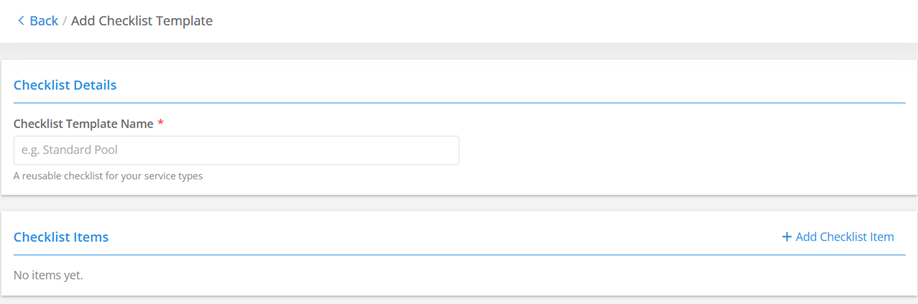
- Click Add Checklist Item and fill in the item's details.
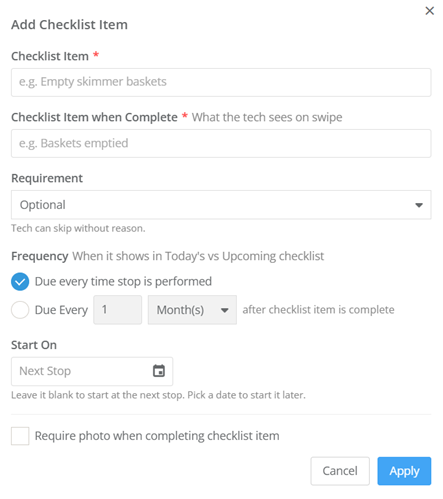
| Field | Tier | What it does |
|---|---|---|
| Checklist Item | All | The task the tech does, like Empty skimmer baskets. Required. |
| Checklist Item when Complete | All | The wording the tech sees after they swipe to complete the item, like Baskets emptied. The service email uses this wording too. Required. |
| Requirement | Scaling Up, Enterprise | Optional: the tech can skip the item without a reason. Required to finish: the tech can't finish the stop until the item is done. Required with reason to skip: the tech can leave the item undone by picking a reason when they finish the stop. Skipping with a reason requires Skimmer Pro 26.0 or later. |
| Frequency | Scaling Up, Enterprise | Controls when the item shows in the tech's Today checklist or Upcoming checklist. Choose Due every time stop is performed, or choose Due Every and set how often, like 1 Month(s) after the item was last completed. |
| Start On | Scaling Up, Enterprise | Leave it blank to start the item at the next stop. Pick a date to start it later. |
| Require photo when completing checklist item | Scaling Up, Enterprise | The tech must take a photo to complete the item. |
- Click Apply to save the checklist item.
- Repeat steps 6 and 7 to add more items to the checklist.
- When you have added all your checklist items, click Save.
When your templates are ready, create your service types in Setting up Service Types.