
Auto Invoicing by Customer Date
Auto Invoicing by Customer Date lets you bill each customer on their own day of the month, instead of generating every invoice on a single company-wide date. Once configured, Skimmer automatically creates invoices for the right customers on the right day.
This is ideal if you have customers on different billing schedules, for example, some HOAs need to be invoiced on the 1st, commercial accounts on the 15th, and residential customers on the last day of the month.
Who should use this
Companies that want to bill different customers on different days of the month.
If every customer is invoiced on the same day, the standard auto invoicing setting works perfectly and you do not need this feature.
How it works
- You can add a custom invoice date to any new or existing customer. For example, you can invoice John Smith on the 15th of each month, Jane Smith on the last day of each month, and everyone else on the default auto invoice day.
- Each day Skimmer checks which customers are due to be invoiced today.
- For each matching customer, Skimmer generates an invoice containing everything billable since their last invoice: completed service stops, chemical readings/dosages, and any recurring monthly service charges.
- Skimmer creates invoices using your company's existing Auto Invoicing settings (email delivery, PDF attachment, line item rules, etc.).
- If a customer has nothing billable, no invoice is generated.
Customers without a custom invoice date will be billed on your company default auto invoicing day, just like before.
Getting started
Review your auto invoice settings
Go to the Invoice Settings page and confirm Auto Invoicing is enabled. This controls the global behavior (email delivery, attachments, what gets billed, etc.). Per-customer dates use these same rules.
If you haven't enabled auto invoicing yet, see Billing – Auto Invoicing Settings for more information.
Change customers invoice dates
Skimmer allows you to update customer invoice dates one at a time via the customer profile or to update multiple customers' invoice dates via a bulk update from the customer list.
To update a single customer's invoice date:
- Open the customer's profile.
- In the billing section, click the Edit option.
- Scroll to the Invoice Date section.
- Click the Change invoice date button.
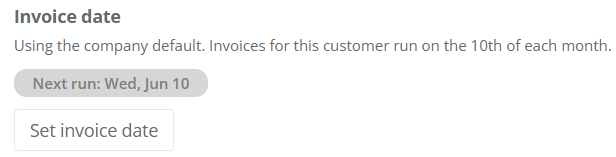
- Select the date you want to generate the customer's invoice.
- Choose 1–28 for a specific calendar day.
- Choose Last for customers who should be invoiced on the 28th/29th/30th/31st depending on the month.
- Review the field below the new invoice date to confirm the next invoice run date as well as the per stop services, dosages, and per month services date ranges included in the next invoice run date.
Example: Selecting a date before the default auto invoice date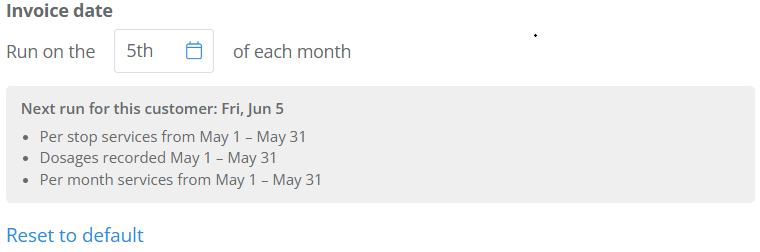 Example: Selecting a date after the default auto invoice date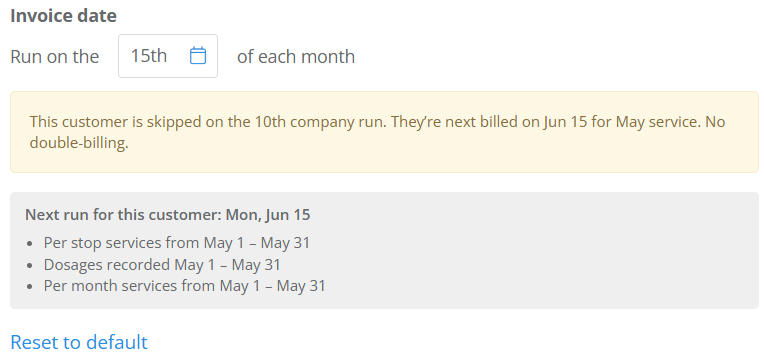
- Click the Save button to save your changes.
 Example: Selecting a date after the default auto invoice date
To change multiple customers to a new invoice date:
- From the customer list, check the box next to the customers whose invoice date you want to change.
- Click the Set Invoice Date option.
- From the Bulk update invoice date window, select the new date.
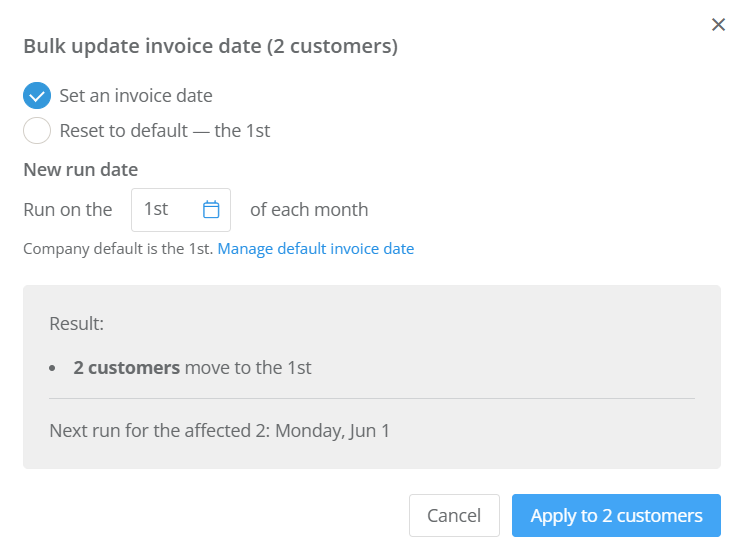
- Click the Apply button.
You only need to select a custom date for customers that you want to bill on a day other than your company default. Leave it blank for everyone else.
Let Skimmer do the rest
That's it. Skimmer will pick up the customer on their scheduled day during the next run and generate the invoice automatically. You'll see the new invoice on the customer's record (and in your invoice list) on their billing day.
What gets invoiced
Each auto-generated invoice includes everything billable for that customer since their last invoice:
- Completed service stops within the billing period
- Chemical dosages logged on those stops
- Recurring monthly service charges (if their service is set up for monthly billing)
If there's nothing billable, the customer is skipped. No $0 invoices are created.
When invoices are generated
Auto invoicing runs overnight in your local time zone (set on your company profile). Invoices for a given day will typically be created by early morning so they're ready for you when you start the day.
The day is evaluated against the customer's Invoice date field. For example, a customer set to the 15th will be invoiced on the 15th of each month.
Notifications and delivery
The invoices created by this feature follow your standard Auto Invoicing email and PDF settings:
- If Auto send invoice emails to customers upon generation is enabled, the invoice is automatically emailed to the customer.
- If Add a PDF attachment is enabled, the PDF is attached to that email.
- Additional email recipients (if configured) are also notified.
You can change these settings any time from the Invoice Settings page.
Tips & best practices
- Avoid changing a customer's invoice date multiple times in a single month. The customer won't be double billed but it is possible that some charges will not be invoiced.
- Stick to the 1st through 28th when you can. These days exist in every month, so the schedule is predictable. Use Last day of month if you need end-of-month timing.
- Use customer tags to keep auto invoicing scoped to the customers you've onboarded. The Auto Invoicing Tags settings (Invoicing Settings page) work the same way for per-customer-date invoices.
- Double-check the first run. After setting an Auto Invoice Day on a customer for the first time, review the first generated invoice to confirm it picked up the items you expected.
- Combine with AutoPay. Pair this feature with each customer's autopay schedule so invoices generate just before the card runs, leading to fewer late payments and support calls.