
Send Alerts to Your Techs
Tiers: Scaling Up, Enterprise
Mobile release: 12.15+
Permissions:
- Location (mobile)
- Can send tech alerts to mobile app (web)

Tech alerts let an owner or admin send a push notification straight to a tech's phone from the Skimmer web app. Unlike a normal push, each alert also saves to the tech's mobile app for 7 days, so a missed or dismissed notification isn't a lost message.
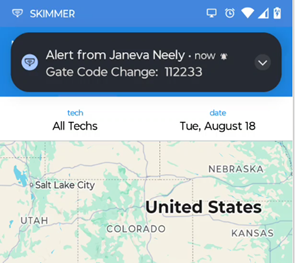 |
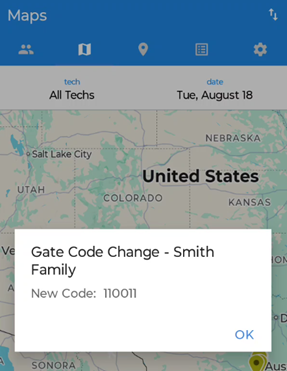 |
Tips & tricks
- Tech alerts are sent manually. Skimmer doesn't trigger them automatically from events like a work order assignment or a route change.
- There's no read receipt. The office cannot see if a tech opened an alert.
- Recipients aren't limited to techs. Adding recipients by role adds every active user with that role, including office staff.
- Alerts don't expire. A notification delivered late still shows the original message.
- Tech alerts are one-time, one-way communication. Techs can't reply to a tech alert and the office can't view alert history.
- To send an alert to all company employees, use the Add users by role option and select all user roles.
Send a tech alert
A few things to keep in mind:
- You need at least one recipient. There's no send-to-everyone shortcut.
- Skimmer records each alert, along with a delivery status for each recipient.
- Turning off tech alerts for your company doesn't recall anything already sent. It only stops future alerts.
- In the web app, click the Send Tech Alert option in the top navigation.
- From the Send Tech Alert window, fill in the following fields:
- Send Alert To – (required) click this field to select recipients by name. Or, click the Add users by role option below the field to bulk send the alert to all users assigned to a role.
- Alert Title – (optional) by default, this field displays: Alert from <user name>. You can change or delete this text. Titles can be up to 50 characters long.
- Message – (required) enter the alert message. Messages can be up to 500 characters long.
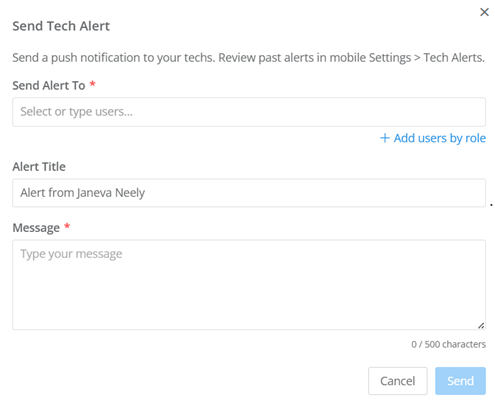
- Click the Send button.
Skimmer delivers the alert immediately. There's no scheduling and no quiet hours, so an alert sent at 9 PM arrives at 9 PM.
Make sure techs can receive alerts
A tech only receives alerts if they meet both of these conditions:
- They're logged into the Skimmer mobile app.
- They have notifications turned on at the device level (Settings > Permissions > Notifications).
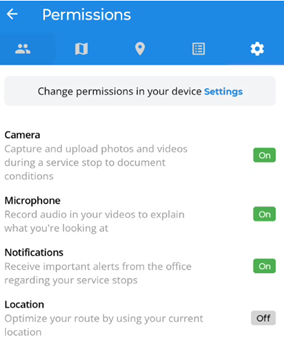
If a tech doesn't open the Skimmer app for 30 days, Skimmer stops sending them alerts. They start receiving alerts again as soon as they reopen the app.
View your tech alerts (for techs)
If you miss a tech alert notification or dismiss it by accident, you can still read it in the app.
- Open the Skimmer mobile app.
- Go to Settings.
- In the Tech Alerts section, tap View Your Alerts.
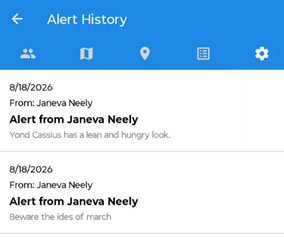
Each entry shows the date, who sent it, and the alert's title and message. Skimmer keeps alerts here for 7 days.
The alert history doesn't refresh automatically. If you open it before the office sends a new alert, go back to Alert History to see it.