
Zapier Integration
Tiers: Scaling Up & Enterprise
Permissions: Can view the Integrations Center
Zapier connects Skimmer to thousands of other apps without any custom development. Use it to build your own automations, called Zaps, that move information into and out of Skimmer automatically.
What Zapier can do
The Skimmer app for Zapier covers most of what Skimmer's public API can do.
Each step in your Zap includes Help text pointing you to where to find the information it's asking for, so you're not on your own if a field isn't clear.
Triggers you can use
| Trigger | Fires when . . . |
|---|---|
| Get products | a new product appears in your product catalog |
| Get product categories | a new product category appears in your catalog |
| Get customers | a new customer appears in Skimmer |
| Get service locations | a new service location appears in Skimmer |
| Retrieve bodies of water | a new body of water appears in Skimmer |
| Retrieve dosage types | a new dosage type appears in Skimmer |
Actions you can use
| Action | What it does |
|---|---|
| Create a new product | Adds a product to your catalog |
| Create customer | Adds a customer, along with a service location and body of water. Needs billing and service location details, including state as a two-letter code and a properly formatted zip code (5 digits for US, 6 with a space for Canada). |
| Update a customer | Updates an existing customer's information. Needs billing and service location details, including state as a two-letter code and a properly formatted zip code (5 digits for US, 6 with a space for Canada). |
| Get a customer | Pulls a customer's details by Skimmer ID |
| Deactivate a customer | Deactivates a customer by Skimmer ID |
| Search customers | Finds customers matching criteria you set |
| Get an invoice | Pulls an invoice's details by Skimmer ID |
| Get users | Pulls a list of users on your account |
| Get work order types | Pulls a list of work order types on your account |
| Get a work order | Pulls a work order's details by Skimmer ID |
| Create a work order | Adds a new work order, with an optional assigned tech and date. Needs a work order type, customer, and service location at minimum; skip the tech or date fields and the work order comes in unscheduled. |
Tips & tricks
- Skimmer doesn't build custom integrations on your behalf in Zapier. The Integrations Center gives you the tools to build your own.
- The Skimmer Zapier app is still in the approval process with Zapier. Until it's public, you'll access it through a private link.
Connect your account
- Click Integrations Center on the left navigation menu.
- In the Available Integrations section, find the Zapier tile and click the Connect button. This opens the Zapier page.
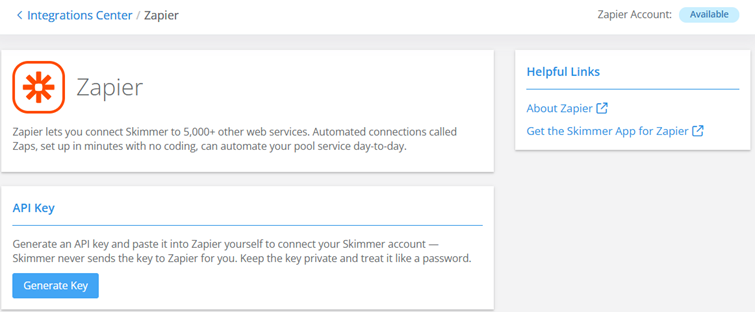
- In the Helpful Links section, click the Get the Skimmer App for Zapier link to add the Skimmer app in Zapier. Since the app isn't public yet, this link takes you to Skimmer's private Zapier app.
- After you add the app, return to the Zapier page and click the Generate Key button to generate the key you'll use to connect your account to Zapier.
- Click the copy icon next to the key.
- In Zapier, start a new Zap.
- Add a Skimmer step to the Zap.
- When Zapier asks you to connect your account, enter the key you generated in step 4.
Use the key from the Zapier tab specifically. A public API key won't work here.
Once you're connected, the Zapier tile shows a Manage button. Click it any time to access the Zapier page, where you can view your key or regenerate it. The Zapier page also includes an About Zapier link that takes you to Zapier documentation if you need guidance while setting things up.
Regenerate your Zapier key
The Regenerate Key button on the Zapier page lets you regenerate your key. Regenerating immediately replaces the old key, so update any Zap using it right after. You might regenerate your key if a third-party contract using it has ended, if you're concerned it's been exposed, or just as routine security practice (rotating it every six months or so is a good habit).
Build your first Zap
Every Zap needs at least one trigger and one action.
- Trigger: the event that starts your Zap. Skimmer triggers check for new or updated data on a schedule, from every minute up to every 15 minutes, depending on your Zapier plan.
- Action: what the Zap does once it's triggered. You can add more than one action to a single Zap.
- Condition (optional): narrows down when an action runs. For example, you might only create a customer in Skimmer if no matching customer already exists.
For more details on creating a Zap, click the Help option to access Zapier's Help Center.
Troubleshooting
Can't connect to Zapier
- Double-check you're using the key from the Zapier tab in the Integrations Center. A public API key won't work here.
- If you're still stuck after confirming your key, contact Skimmer support.
A Zap isn't doing what you expect
- Check the error message Zapier shows you. A validation error usually means a field needs a different type of value. Check the Help text on that step, since it points you to where to find the right information.
- If the message doesn't make clear what's wrong, contact Skimmer support. Include a screenshot of the step's configuration, the data that came through (visible when you test the step in Zapier), and the error message. That gets you a faster answer.