
Service Feedback
Service Feedback lets your customers rate an individual stop or work order with one tap, right from the service email they already receive. You get a per-visit, per-tech quality signal, plus an alert the moment someone's unhappy, so you can follow up before you lose the account.
These are private ratings for your team, not public reviews. Nothing posts to Google, Facebook, or Yelp — customers see the line "Only [your company name] will see your response."
How it works
- You finish a route stop or work order. Your customer gets the service-complete email (or work-order-finished email) they already receive today.
- The email includes a "How did we do?" card with a 1–5 star rating. Your customer taps a star.

- Tapping a star opens a Skimmer-hosted page already linked to that specific stop — no login, no app needed. Your customer confirms the rating and can add a written reason, up to 500 characters. It takes about 30 seconds.
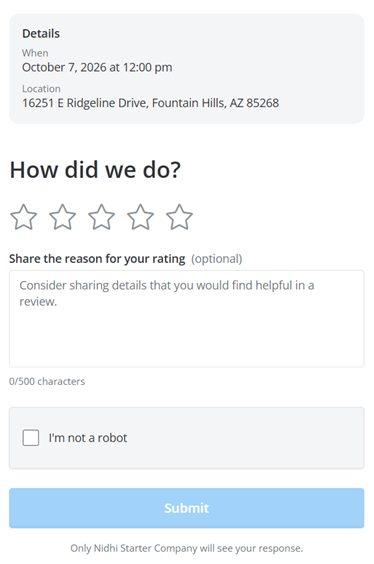
- The rating is attached to that exact route stop or work order, along with the tech who performed it.
- If the rating is at or below the threshold you set, your team gets an office alert so you can follow up.
Tips & tricks
- Rating window - Feedback links stay valid for 30 days after the visit. After that, the link shows a "rate your recent visits" page instead.
- Editing a rating - Customers can change their rating for 7 days after submitting. After that, it's read-only.
- Email required - Rating requests ride your existing service and invoice emails, so the customer needs a valid email address and can't be opted out. There are no text message feedback requests.
- Spam protection - The feedback page is reCAPTCHA-protected.
- Public reviews - Not included. Service Feedback is an internal quality signal. If you want to collect public reviews, that's the Marketing Suite (Reviews) — the two work well together.
Turn on Service Feedback
Turning on Service Feedback covers every rating surface at once:
- Service-complete emails (route stops)
- Work-order-finished emails, for work order types with This work needs to be invoiced and Notify customer when finished turned on
- Invoice emails and the hosted invoice page
- The customer portal
Note: The Include Name of Tech checkbox on the same page controls whether tech names (like "Serviced by [tech name]") appear in these emails.
- From the left navigation menu, click Settings.
- Under Settings, click Service Emails.
- Turn on the Service Feedback toggle. Your change saves right away, there's no separate save step.
Set up feedback alerts
Set up an office alert so your team knows right away when low feedback comes in, and can follow up before the customer churns. Alerts fire about a minute after feedback is submitted. If a customer edits their rating and it still qualifies — or newly drops to or below your threshold — you'll be alerted again.
- From the left navigation menu, click Settings.
- Under Settings, click Office Alerts / Issues.
- In the Service section, click the edit button next to the following alerts:
- Low Service Feedback rating alert - From the Edit: Low Service Feedback rating window, fill in the following fields:
- Trigger Configuration - Set your star threshold — the rating at or below which an alert fires. For example, 2 stars or less.
- Alert Controls - Choose delivery: Panel, Email, and/or Urgent — the same controls as your other office alerts.
- Additional Staff Emails for this Alert - If you turn on Email, add any staff email addresses that should receive this specific alert.
- High service feedback with comment - This alert fires when a customer leaves a 4 star or higher review and a comment. From the Edit: High service feedback with comment window, fill in the following fields:
- Alert Controls - Choose delivery: Panel, Email, and/or Urgent — the same controls as your other office alerts.
- Additional Staff Emails for this Alert - If you turn on Email, add any staff email addresses that should receive this specific alert.
- Low Service Feedback rating alert - From the Edit: Low Service Feedback rating window, fill in the following fields:
- Click Apply.
Where to find your ratings
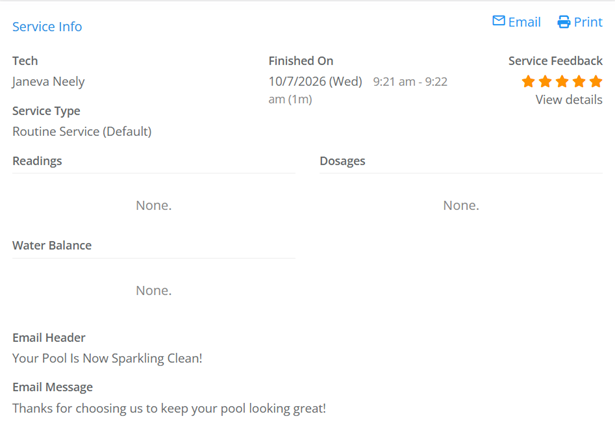
- Service history — the star rating shows on each service. A rated stop shows the rating with a View details link; an unrated one shows No feedback as text.
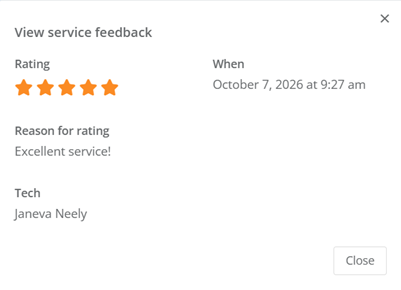
- View Service Feedback window — when you click View details, this window shows the full detail: rating, written reason, techs, and timestamps.
- Customer activity feed — logs an entry whenever a rating is created or updated.
- Route dashboard — shows the Service Feedback status right on each finished stop.
- Service Feedback report
Catching the ones you missed
Not every customer rates from the service email, so there's a second chance built in. Invoice emails and the hosted invoice page include a "Rate your recent visits" card that lets a customer rate all of their still-unrated visits from the past 30 days on one page.
Customers who use the customer portal can also view, add, or edit a rating on any service through the same "How did we do?" form.
If you delete a stop or work order with feedback
If a customer already left feedback on a stop or work order and you delete it, the feedback is deleted along with it, and any low-rating alert tied to that feedback is removed too.
FAQ
Is this the same as the Marketing Suite (Reviews) add-on?
No. Service Feedback is part of core Skimmer and keeps feedback private to your team. Marketing Suite (Reviews) is an add-on focused on public reviews. Many companies use both — Service Feedback catches problems early, and Reviews amplifies the happy customers.
Does my customer need a login or the app?
No. They tap a star in the email and land on a page already linked to that visit.
Can I choose which ratings alert me?
Yes. You set the star threshold (if applicable), who gets notified, and how.
Do ratings tell me which tech was on the job?
Yes. Every rating is bound to the specific route stop or work order, including the tech(s) who performed it.
Can I turn it off?
Yes, any time, from the Service Feedback toggle in Service Emails settings.