
GoHighLevel Integration
GoHighLevel is a customer relationship management (CRM) and marketing automation platform for managing leads, contacts, and sales pipelines. The GoHighLevel integration keeps your GoHighLevel contacts and Skimmer customers in sync, so you don't enter the same person twice.
When an opportunity reaches the GoHighLevel pipeline stage you choose, Skimmer creates or updates the customer, adds a service location and body of water, and can create a work order. Skimmer also sends updated customers and customer activity back to GoHighLevel.
GoHighLevel is a marketplace integration. You add it to your subscription and set it up with a step-by-step wizard in the Integrations Center. Skimmer checks GoHighLevel on a schedule, so there's nothing to install in GoHighLevel.
What GoHighLevel can do
The integration runs five syncs. Each one has its own on/off switch, and every sync starts off.
| Sync | When it runs | What it does |
|---|---|---|
| Initial contact sync | Once, when you finish setup | Imports your existing GoHighLevel contacts into Skimmer as customers. Skips contacts without an email address and contacts already in Skimmer. |
| Lead conversion sync | Every 15 minutes | Finds opportunities that moved into your trigger stage. Updates the Skimmer customer with the same email address, or creates a new customer. Adds a service location and body of water from your field mapping, plus any Skimmer tags you choose. Can also create a work order. Each move into the stage is handled once. |
| Contact update sync | Every 30 minutes | Finds contacts created or edited in GoHighLevel. Updates the matching Skimmer customer, or creates a new one. |
| Skimmer to GoHighLevel sync | Once a day, at 12:04 am Eastern time | Adds or updates GoHighLevel contacts for Skimmer customers that changed in the last 24 hours. |
| Skimmer activity notes | Every hour | Adds new entries from each customer's Skimmer activity log as notes on the matching GoHighLevel contact. |
Tips & tricks
- Skimmer matches records by email address. Keep each customer's primary email in Skimmer the same as the contact's email in GoHighLevel.
- Once a contact and a customer are matched, Skimmer remembers the pair. If the email address changes later, Skimmer still updates the same record instead of creating a duplicate.
- Lead conversion sync and contact update sync only pick up changes made after you turn them on. To bring in contacts you already have, use initial contact sync.
- With contact update sync on, every new GoHighLevel contact becomes a Skimmer customer with a service location, whatever its pipeline stage. Leave it off if you only want customers from your trigger stage.
- Each Skimmer activity is added to GoHighLevel once. If you delete a note in GoHighLevel, Skimmer doesn't add it again.
- If you don't map a field for minutes at stop, Skimmer uses 30 minutes. If you don't map body of water fields, Skimmer names it Pool, with 0 gallons and 0 filter pressure.
- Skimmer doesn't build or change your GoHighLevel pipelines. Set up your pipeline stages in GoHighLevel before you choose a trigger stage.
Before you start
Contact your Skimmer customer success manager (CSM) for assistance before you begin configuring the GoHighLevel integration.
Setup takes about 15 minutes. You need:
- A GoHighLevel login that can create private integrations on your sub-account. This is usually a GoHighLevel administrator.
- The Can view the Integrations Center permission in Skimmer.
- An Enterprise subscription with the GoHighLevel add-on. If you don't have it yet, see Add GoHighLevel to your subscription below.
- A GoHighLevel pipeline with the stage you want to use as your trigger stage.
Add GoHighLevel to your subscription
GoHighLevel requires the Enterprise tier and a paid add-on. Its card shows Upgrade Required until you add it. You can buy the add-on and start setup in one pass.
If you add GoHighLevel partway through your billing cycle, the charge is prorated and included on your next Skimmer invoice. Only users with the Can view payment method page permission can add it. If you don't have that permission, ask your account owner or an admin. If your account isn't on the Enterprise tier, contact your Customer Success Manager about upgrading.
- Click Integrations Center on the left navigation menu.
- Find the GoHighLevel card. It shows Upgrade Required.
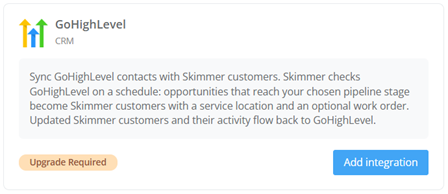
- Click Add integration.
- In the Add GoHighLevel? window, review the monthly price.
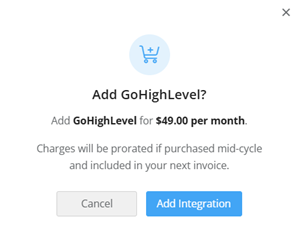
- Click Add Integration to confirm. Skimmer adds GoHighLevel to your subscription and opens the Configure GoHighLevel window. Get your GoHighLevel details ready (next section) before you fill it in.
Get your GoHighLevel details ready
Before you connect in Skimmer, collect two things from GoHighLevel. Do these steps in GoHighLevel.
Create a private integration token
Skimmer signs in to GoHighLevel with a private integration token. Treat the token like a password.
- Sign in to the GoHighLevel sub-account you want to connect.
- Go to Settings > Private Integrations. If you don't see Private Integrations, turn it on under Settings > Labs first.
- Create a new integration.
- Name the integration Skimmer so you can find it later.
- Select these scopes:
- contacts.readonly
- contacts.write
- opportunities.readonly
- locations.readonly
- locations/customFields.readonly
- locations/tags.readonly
- Create the integration.
- Copy the token right away and keep it somewhere safe. GoHighLevel shows it only once. You'll enter it in Skimmer later.
Find your Location ID
Your Location ID tells Skimmer which GoHighLevel sub-account each update comes from.
- In GoHighLevel, go to Settings > Business Profile.
- Copy your Location ID.
Tip: You can also find the Location ID in your browser's address bar while you view the sub-account. It's the part after /location/ in the web address.
Connect GoHighLevel in Skimmer
The setup wizard opens inside Skimmer and has seven steps, listed on the left side of the window. Click Next to move forward or Previous to go back.
- Click Integrations Center on the left navigation menu.
- In the Available Integrations section, find the GoHighLevel card and click Connect. If you just added GoHighLevel to your subscription, the window is already open.
- On the Initial Configuration step, enter the integration name.
- Click Next.
- On the Configuration step, enter your connection details:
- GoHighLevel Location ID: enter your Location ID.
- Go High Level Private API Key: paste your private integration token.
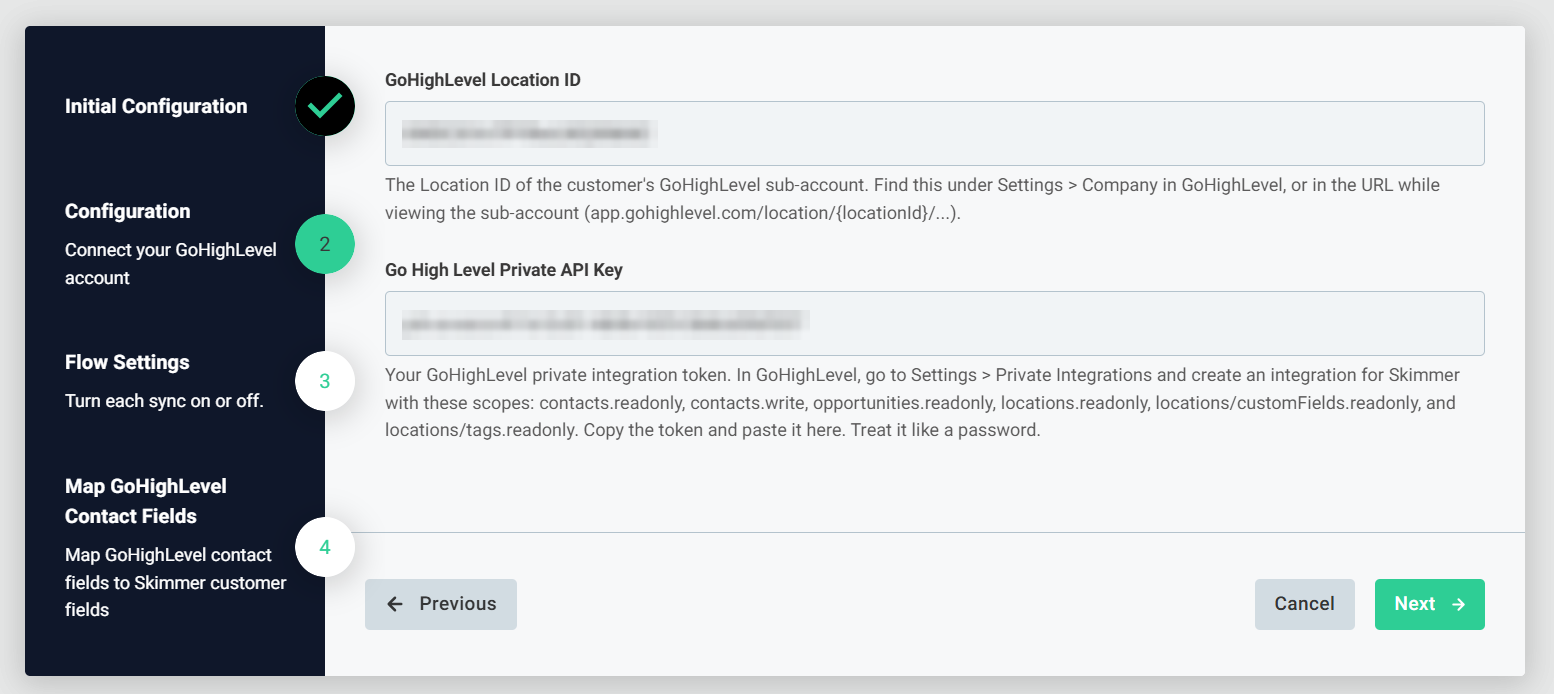
- Click Next.
- On the Flow Settings step, turn on the syncs you want:
- Enable Initial Contact Sync: imports your existing GoHighLevel contacts once, when you finish setup. We recommend this if you're new to Skimmer or your two systems are out of step.
- Enable Lead Conversion Sync: creates or updates Skimmer customers when an opportunity reaches your trigger stage. Skimmer checks every 15 minutes.
- Enable Contact Update Sync: creates or updates Skimmer customers when a GoHighLevel contact is created or edited. Skimmer checks every 30 minutes.
- Enable Skimmer to GoHighLevel Sync: adds or updates GoHighLevel contacts once a day.
- Enable Skimmer Activity Notes: adds Skimmer activity as notes on GoHighLevel contacts every hour.
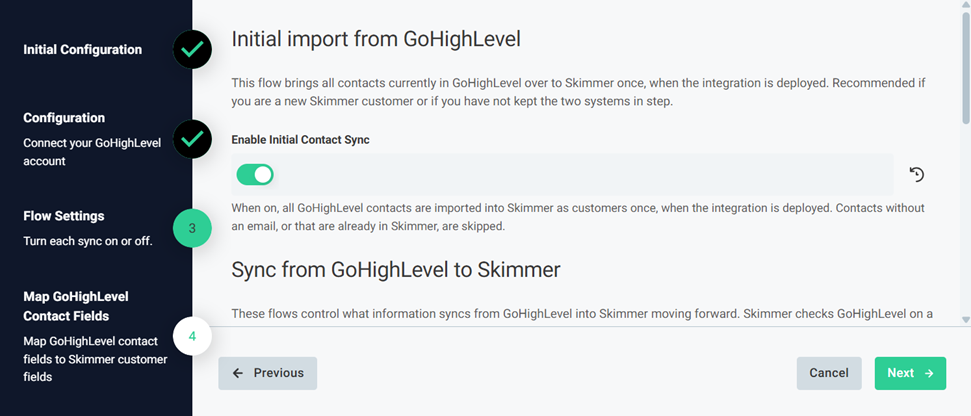
- Click Next.
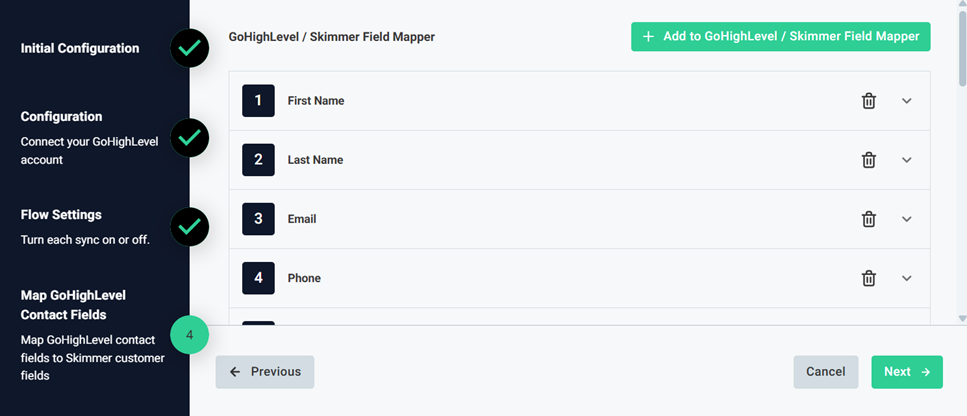
- On the Map GoHighLevel Contact Fields step, click the corresponding Add to button to match a field in GoHighLevel with a field in Skimmer:
- GoHighLevel / Skimmer Field Mapper: match each GoHighLevel contact field to the Skimmer customer field it fills. First Name, Last Name, Email, and Phone are already mapped. Your GoHighLevel custom fields show with [Custom] in front of the name. For yes/no fields, such as Skimmer Send Service Texts (yes/no), a GoHighLevel value of true, yes, y, 1, or on counts as yes.
- Custom Field Values: choose GoHighLevel custom fields and enter a value for each. Skimmer adds these values to the GoHighLevel contacts it creates during the daily sync.
- Tags on New Customers and Tags on Updated Customers: these lists start with Created from GoHighLevel and Updated from GoHighLevel. Click the Add to button to type another Skimmer tag name, or click the trash can to remove one. If you leave a list empty, Skimmer uses its starting tag.
- GoHighLevel Tag / Skimmer Tag Mapper: match GoHighLevel tags to Skimmer tags, if you use them. Type each Skimmer tag name exactly.
- Click Next.
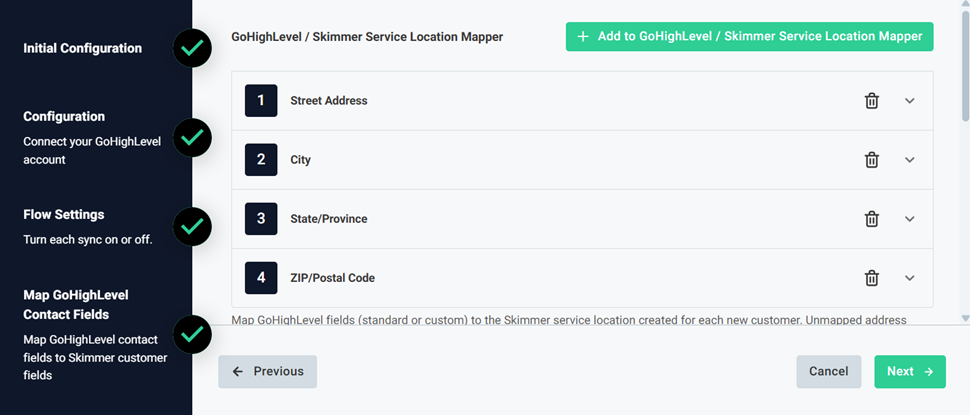
- On the Service Location Mapping step, click the corresponding Add to button to match a field in GoHighLevel with a field in Skimmer:
- GoHighLevel / Skimmer Service Location Mapper: match GoHighLevel fields, including custom fields, to service location fields such as address, gate code, location code, and minutes at stop. Street Address, City, State/Province, and ZIP/Postal Code are already mapped. Unmapped address fields use the customer's billing address.
- GoHighLevel / Skimmer Body of Water Mapper: match GoHighLevel fields to body of water fields such as name and gallons.
- Default Service Rate Type and Default Labor Cost Type: choose the defaults Skimmer uses when you map a rate or cost amount but GoHighLevel doesn't send a valid type. They start as PerStopIncludingChemicals and PerStop.
- Default Minutes At Stop: enter the minutes at stop for new service locations. Skimmer uses this when Minutes At Stop isn't mapped. It starts at 30, and Skimmer uses 30 if you leave it blank.
- Click Next.
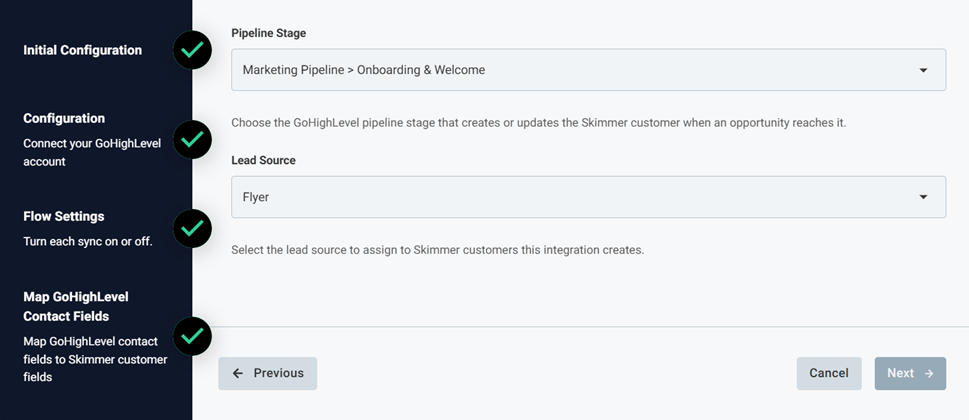
- On the Create Customer in Skimmer step, set when and how customers are created:
- Pipeline Stage: choose the GoHighLevel pipeline stage that creates or updates the Skimmer customer.
- Lead Source: choose the Skimmer lead source for customers this integration creates.
- Click Next.
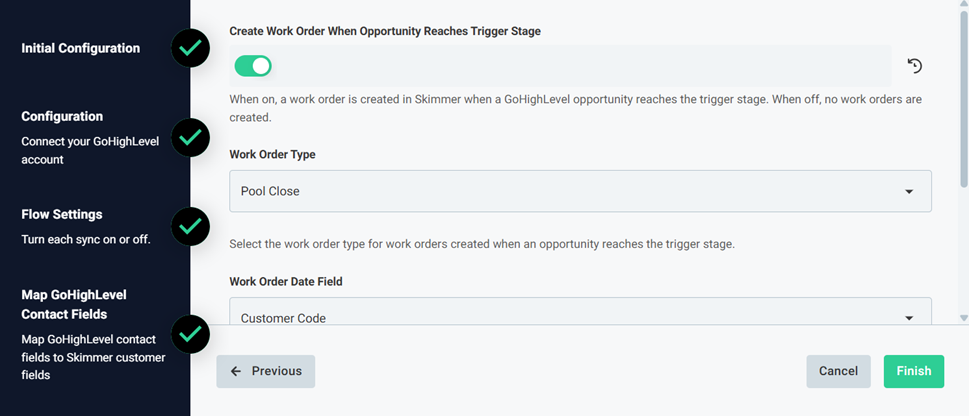
- On the Skimmer Work Order Mapping step, choose whether to create a work order. This step is optional.
- Turn on Create Work Order When Opportunity Reaches Trigger Stage.
- Select the Work Order Type.
- Select the Work Order Date Field, the GoHighLevel date field that sets the work order date. Choose Leave unscheduled to create work orders without a date.
- Select the Assigned User.
- Click Finish. The GoHighLevel card changes to Connected and moves to the Connected Integrations section. If you click Cancel or close the window before you finish, GoHighLevel stays Available. Click Connect to start again any time.

Test your connection
- In GoHighLevel, move a test opportunity into your trigger stage.
- In Skimmer, check your customer list. The customer appears within 15 minutes, with its service location and body of water.
Change your GoHighLevel settings
Use the setup wizard to turn syncs on or off, change your mapping, or enter a new token. Your current settings are already filled in.
- Click Integrations Center on the left navigation menu.
- In the Connected Integrations section, find the GoHighLevel card and click Manage.
- On the GoHighLevel detail page, click Configure.
- In the Configure GoHighLevel window, click Reconfigure.
- Step through the wizard and update your settings.
Note: If you delete or replace your private integration token in GoHighLevel, update it on the Configuration step right away. Syncs stop until Skimmer has a working token.
- On the last step, click Finish. If you close the wizard without finishing, your existing settings stay the same.
Upgrade to a newer version
Most updates to the integration install automatically. When an update needs you to review your settings, an Upgrade button appears on the GoHighLevel detail page in place of Configure.
- On the GoHighLevel detail page, click Upgrade.
- In the Upgrade GoHighLevel window, add any new information it asks for and click Finish. Your integration keeps running. If you cancel, your current version keeps working, and you can upgrade later.
Pause or unpause GoHighLevel
Pausing stops all syncs but keeps your settings, so you don't have to set up the integration again.
- On the GoHighLevel detail page, click Configure.
- On the Configure GoHighLevel page, click the three dots menu.
- Click Pause Integration.
To turn syncs back on, open the three dots menu and click Unpause Integration.
Disconnect GoHighLevel
Disconnecting turns off all five syncs. Skimmer saves your settings, so you can reconnect later without starting over.
- On the GoHighLevel detail page, click Disconnect GoHighLevel.
- In the Disconnect GoHighLevel? window, click Disconnect to confirm. The GoHighLevel card moves back to Available Integrations.
Important: Disconnecting doesn't remove the add-on from your Skimmer invoice. To stop paying for it, remove the GoHighLevel add-on from your Payment Method page.
If you no longer need the connection in GoHighLevel, you can also delete the Skimmer private integration from your sub-account.
Troubleshooting
A list says "No pipeline stages found" or "No custom fields found"
Skimmer can't read your GoHighLevel account. The Location ID or token is wrong, or the token is missing a scope. If the Work Order Date Field list only shows Leave unscheduled, it's the same problem.
- Open the setup wizard and go to the Configuration step.
- Re-enter your Location ID and private integration token.
- In GoHighLevel, check that the Skimmer private integration has all six scopes listed in this article. If one is missing, add it to the integration. You don't need a new token.
- If it still doesn't load, create a new private integration token in GoHighLevel and enter that one.
Opportunities reach the trigger stage, but no customer is created
- Check that Enable Lead Conversion Sync is turned on.
- Check that a Pipeline Stage is selected.
- Wait up to 15 minutes. Skimmer checks for opportunities in your trigger stage every 15 minutes.
- Check that the GoHighLevel Location ID matches the sub-account where the opportunity lives.
The customer is created, but no work order
Check that Create Work Order When Opportunity Reaches Trigger Stage is turned on, and that a work order type is selected.
Skimmer customers don't show in GoHighLevel
- Check that Enable Skimmer to GoHighLevel Sync is turned on.
- Check that the customer has an email address in Skimmer.
- Wait for the next daily sync. It runs at 12:04 am Eastern time and picks up customers that changed in the last 24 hours.
Skimmer activity doesn't show in GoHighLevel
- Check that Enable Skimmer Activity Notes is turned on.
- Check that the customer's primary email in Skimmer matches the contact's email in GoHighLevel. Activity for a customer with no matching contact is skipped.
- Wait for the next hourly sync.
A GoHighLevel change didn't reach Skimmer
Skimmer checks for contact changes every 30 minutes, so wait up to 30 minutes first. Also, when Skimmer updates a GoHighLevel contact, Skimmer ignores changes to that contact for the next 10 minutes. This keeps the two systems from updating each other in a loop. Wait 10 minutes and make the change in GoHighLevel again.
Customer details show up in the wrong fields
Check your field mapping in the setup wizard. For example, if a GoHighLevel email field is mapped to a Skimmer phone field, emails show up as phone numbers.
Still stuck?
Contact Skimmer Support as soon as you notice a problem. Sync records are kept for only two weeks, so older problems are hard to trace. Include screenshots of your setup wizard steps and the name and email of a customer or contact that didn't sync. That gets you a faster answer.