
Marketing Suite - Automations, Broadcasts, and Segments
Tier: Add-on
Permissions: Can access Marketing Suite
With Campaigns, you can build your own automations, broadcasts, and segments using your Skimmer data. Describe what you want in plain language and let AI build it, or build broadcasts and segments yourself.
The Create button on the Campaigns page gives you three options:
- Automation - Runs on a schedule, over and over. It can send on a set date, like every year on November 19, or whenever a customer joins its segment.
- Broadcast - One message, one date. A broadcast sends once to everyone in its audience at send time.
- Segment - A saved audience you can reuse in automations and broadcasts.
On the Automations and Segments tabs, the Type column shows where each automation came from. Custom automations and segments are ones you build. Managed automations and segments are pre-built and provided by Skimmer.
Before you begin
- Set up Campaigns. Finish the Campaigns setup in Marketing Suite - Campaigns and Reviews first.
- Plan for SMS approval. Text messages need an approved marketing phone number. Approval takes 3 to 7 business days, so email automations are ready sooner.
- Know the built-in send rules. By default, campaigns go to active customers only. Customers who unsubscribed never get emails, and texts only go to customers who opted in to marketing texts. Subscription status is checked at send time, so a customer who unsubscribes partway through an automation doesn't get its later messages.
Tips & tricks
- You don't need every campaign detail up front. The assistant asks for anything it's missing before you build.
- Each conversation builds one automation. To build another, click the New conversation button. If nothing has been built yet, the current conversation is discarded, and you can't get it back. If the conversation already built an automation, the conversation stays with it, and you can reopen it by clicking the automation in your list.
- Conversations that built an automation are shared with your team. Anyone who clicks the automation opens its conversation, and teammates' messages appear as they're sent.
- Segments can only use data synced from Skimmer. If you ask for something the assistant can't access, it tells you. Quote details aren't synced yet, so quote follow-up campaigns aren't possible.
- Segments built on equipment or pool size are only as complete as the records in Skimmer.
- You can't split campaigns by office location.
- AI-drafted content and links need a human check before you turn anything on.
- Customers can unsubscribe from marketing emails and texts. Use Skimmer's native broadcast emails for operational messages like quote reminders or service updates, while Marketing Suite emails and texts should be used for promotions.
- The assistant always builds a new segment for each automation. It can't use or change a segment from your saved list, and the segment it builds doesn't appear with your saved segments.
- Every customer goes through the same steps in the same order. To treat two groups differently, build two automations.
Custom automations
When you create an automation, you answer a few questions and the AI assistant builds the audience, the timing, and a first draft of the email or text. You review it, send yourself a test, and turn it on.
Write a good request
The more you tell the assistant up front, the fewer questions it asks and the closer its first plan is to what you want. A good request covers:
- Who it's for - describe customers in terms of your Skimmer data, like customers who haven't had a stop in 60 days.
- What they should receive - email, text, or both, plus anything the message must include, like an offer, a discount code, or a link.
- When it should send - what starts it and any waits in between, like "the day after their stop" or "a week later if they still haven't booked."
- What you want to happen - the goal, like getting a review or bringing a customer back. The assistant uses it to write the messages.
Use the words your business uses, and refer to things the way your Skimmer records name them.
Create an automation
- From the left navigation menu, click the Campaigns option.
- Click the Create button.
- From the What do you want to make? menu, click Automation. The Create automation with AI page opens.
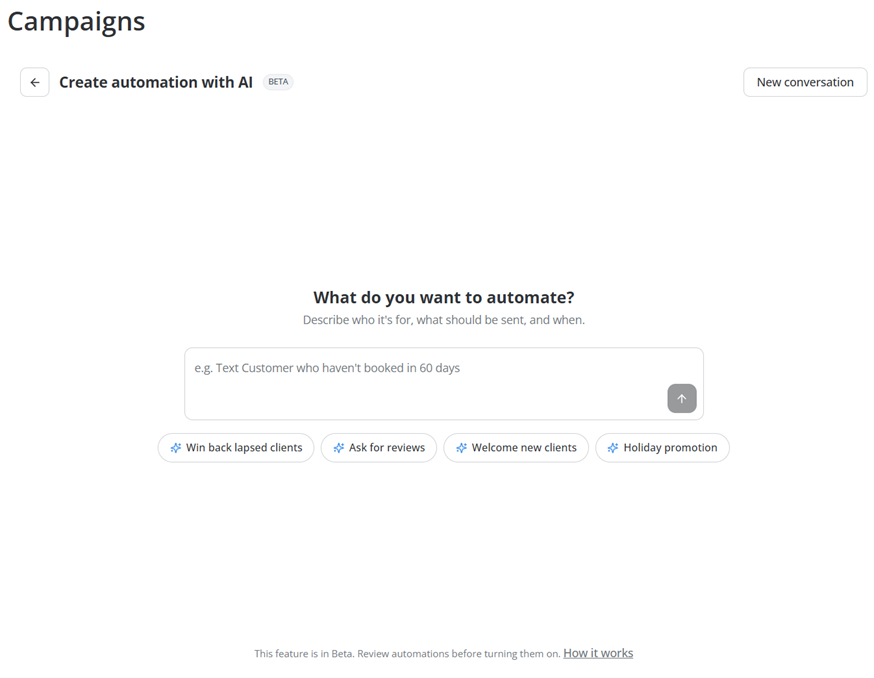
- In the What do you want to automate? field, describe who it's for, what should be sent, and when. For example, "Send a pool service reminder to customers who have not had a route stop in 60 days." You can also click one of the suggested prompts below the field, like Win back lapsed clients or Holiday promotion. Clicking a prompt fills in the field, so you can edit it before you send it.
- Click the arrow button to send your request.
- Answer the assistant's questions. Click one of the suggested answers, or type your answer and click Send. The assistant asks about details like whether you want a one-time Broadcast or an ongoing Automation, when the message goes out, and anything the message needs, like a discount code.
- When the plan looks right, click the Build it button below the plan. If the assistant still needs information, it asks first. Skimmer then builds your audience, writes your email, and assembles your automation.
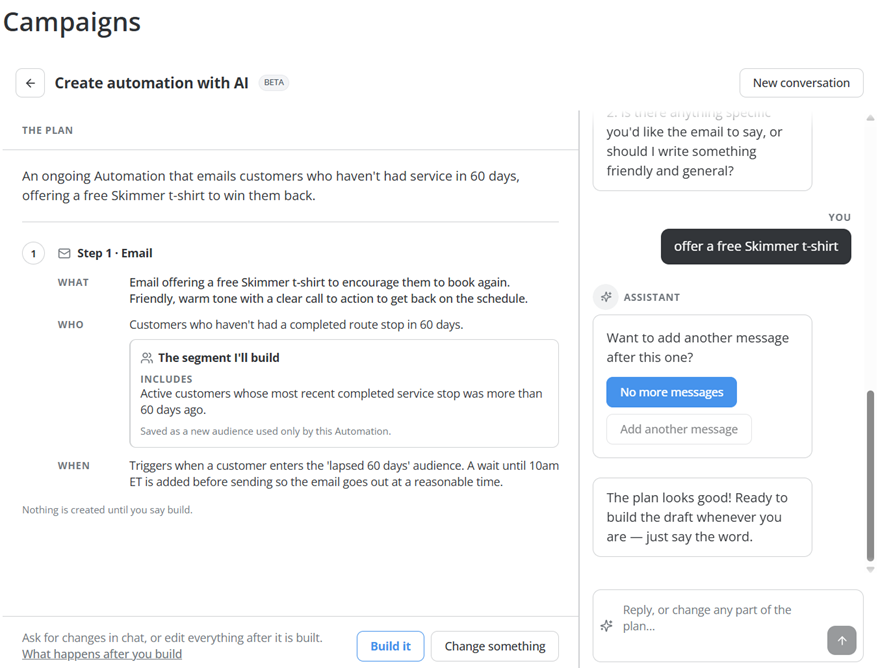
- Review the plan on the left side of the page. It updates as you answer and shows a summary, what each step sends, who it goes to, when it sends, and the segment the assistant will build. To make a change, type it in the Reply, or change any part of the plan field, or click Change something.
- Review the new automation. It opens on the Workflow tab as a draft, and the assistant stays open on the right so you can keep making changes. For details, see Review and edit an automation.
- Send yourself a test email. For details, see Send a test email.
- To turn on the automation, click the Draft drop-down and select Active. You can also activate a draft automation from the Automations tab by changing its status from Off to On.
How automations work
An automation starts in one of two ways:
- When a customer joins a segment - the automation starts for each customer the moment they match its segment, like customers whose last stop was 60 days ago.
- On a date each year - the automation runs every year on a month and day you pick, like a holiday, for everyone in its segment that day.
After it starts, the automation runs its steps from top to bottom for each customer. Steps can send an email, a text, or both, wait for a set time or until a time of day, or check whether the customer is still in the segment. Every customer goes through the same steps in the same order, on their own schedule. Once an automation is on, it keeps running for customers who qualify later, with nothing to update.
Review and edit an automation
When you open an automation, the Workflow tab shows each step:
- Start this automation - when the automation starts and who it sends to. It can start on a set date, like every year on November 19, or when a customer joins its segment. Segment-based automations also show a cooldown, which sets how long before the same customer can get it again.
- Wait for - how long to wait before the next step. Waits between steps can add up to 365 days in total.
- Wait until (always) - holds the message until a set time of day, so it doesn't send at an odd hour. Times are in Eastern time.
- Email and SMS - the messages that send. Use each step's toggle to turn that message on or off.

The Recipients tab lists the customers who have been sent a message. It shows when each message was sent, the customer's name, email, and phone, and the status of each email and text, like Delivered or Opened. Use the Search field to find a customer, or click the filter icon next to Communications Sent to filter the list. To download the list, click the download CSV button in the top-right corner of the table.
The Insights tab shows how the automation is performing. Use the date range picker at the top to choose the dates. The tab shows:
- Email - Sent, delivered, open rate, click rate, bounce rate, spam, and unsubscribed.
- Sales Insights - The order amount and number of orders that came from the automation. Click Email Attribution for details on how sales are tied to emails.
- Sales From This Campaign - A list of each order from the automation, with the customer, transaction ID, amount, channel, sent date, and order date.
Note: Sales only appear when your account processes payments through Skimmer. Revenue updates daily, so today's orders may not appear until tomorrow.
Review before you turn it on
- Read every message. Check the subject line, preview text, email, and text message, including names, offers, links, and dates. You can edit messages directly in the editor.
- Check who will receive it. Open the segment and make sure the count and the customers it matches are who you meant. You can edit the segment directly.
- Check the timing. Look at what starts the automation and each wait between steps. Times of day are in Eastern time. To change the timing, ask the assistant.
- Check the sender. Each send needs an email address or a phone number to send from.
Nothing sends until you turn the automation on, no matter how long it sits as a draft. Once it's on, each customer starts the automation when they meet its trigger.
If an automation won't turn on
A draft can't be turned on until it has everything it needs. For the first three problems below, hold the pointer over the status at the top of the editor to see which one it is.
- Missing subject in email communication - an email has no subject line or no body.
- Missing SMS message in SMS communication - a text has no message.
- Missing include segment - the automation doesn't say who should receive it.
- No sender - no email address or phone number is set up to send from.
- Text messaging is not approved yet - automations that send texts can't be turned on until the number they send from is approved.
Edit an automation
While an automation is a draft, you can edit its messages and segment yourself. Changes to timing or steps go through the assistant.
Note: The assistant can only change a draft that its own conversation built. Once an automation is on, you can turn it off or edit the wording and design of its messages. To change anything else, build a new version. For details, see Change an automation that's already on.
To edit an automation:
- Click the Edit with AI button.
- In the Edit with AI panel, describe the change. For example, add a second reminder step or change the wait time.
- Review the updated steps and email preview.
Change an automation that's already on
You can turn an automation off at any time and edit the wording and design of its messages. To change who gets it, when it sends, or its steps, build a new version:
- Open the existing automation and note who it sends to, what each message says, and when each one sends.
- Click Create. From the What do you want to make? menu, click Automation. Describe the automation as it is now, plus what you want to change. For example, "The same thank-you email the day after a stop, but only for first-time customers."
- Review the plan to make sure it matches the old automation except for your change, then click Build it.
- Turn off the old automation, so customers don't get both.
- Review the new draft, then turn it on.
Edit the email
The assistant can't change where links in an email point. Check every link and button in the email editor, and update them there.
- In the Email Preview, click the Edit Email button.
Note: Click the help icon in the top right section of the page to view tutorials on using the email editor. - Update the content, links, and buttons.
Send a test email
Note: Merge fields calculated at send time appear empty in test emails.
- In the Email Preview, click the Send Test button.
- In the Send to email address field, enter the address to send the test to.
- (Optional) In the Select a customer to preview as field, search for a customer. The test fills in that customer's information, but it still goes to the address you entered.
- Click the Send Test email button. A Success message confirms the test was sent.
Troubleshooting automations
If an automation build stops, anything the assistant already created is kept, and you can pick up where it left off. Here's what each message means:
- "I ran out of steps before finishing this build." - The build was too long to finish at once. Reply "continue" and the assistant picks up where it stopped.
- "Something went wrong before I could finish." - Send your last message again.
- "Could not build your automation" - Go back to the plan and click Build it again.
- "Your automation was built, but the editor could not load" - The automation exists. Open it from the conversation to try again.
- "Failed to send your message" or "Failed to load the conversation" - Try again. Your conversation is saved.
Custom broadcasts
A broadcast is a one-time message you send to a segment. You choose the audience, write the message, and send it now or schedule it. It doesn't repeat. Use a broadcast for a message tied to a specific moment, and use an automation for a message that should go out on its own whenever a customer qualifies:
- Broadcast - A Black Friday sale sent once to all active customers, or a heads-up about your holiday service schedule.
- Automation - A thank-you email and review request 3 days after every stop, or a check-in with customers who haven't had service in 90 days.
Before you send
- Check the audience count. The count shows the opted-in customers in the segment right now. If it looks too high or too low, double-check the segment.
- Check every link. Make sure each link works and goes to the right page.
- Check merge fields. Spell each merge field exactly as the merge field picker lists it, like {{First Name}}, not {{first_name}}. A misspelled merge field shows up in the message as plain text.
- Preview on mobile. Most customers open messages on their phones.
- Check SMS length and characters. The SMS editor shows a character count. Keeping a text under 160 characters avoids a multi-part message, and some characters can cause encoding problems.
- Check the send time and time zone. Do this whenever you schedule a broadcast for later.
Choose the right audience
A smaller, well-targeted audience almost always does better than a large, broad one. When you pick a segment:
- Match the message to the customer. A first-time customer needs a different message than a loyal repeat customer.
- Don't over-send. Customers who get every broadcast tire of them quickly and unsubscribe.
- Leave out customers who don't need the message. For example, leave customers who already booked a spring opening out of your spring opening promotion. On the Audience step, click Don't send to and select the segments to exclude.
Sending to too broad an audience has real costs. Customers who get messages that don't apply to them unsubscribe, and you can't add them back yourself. They have to opt in again by texting START, YES, or UNSTOP, or by filling out a new opt-in form for email. Spam complaints above 0.1% can get your sending domain flagged, so even engaged customers' emails land in spam. After each broadcast, check the unsubscribe and spam numbers. A spike means the message didn't fit the audience.
Create and send a broadcast
To stop and finish later, click Skip & Save as Draft on any step. To rename a broadcast, click its name at the top of the page and type a new one.
- From the left navigation menu, click the Campaigns option.
- Click the Create button.
- From the What do you want to make? menu, click Broadcast. The new broadcast opens as a draft named with the current date and time, with its steps listed on the left.
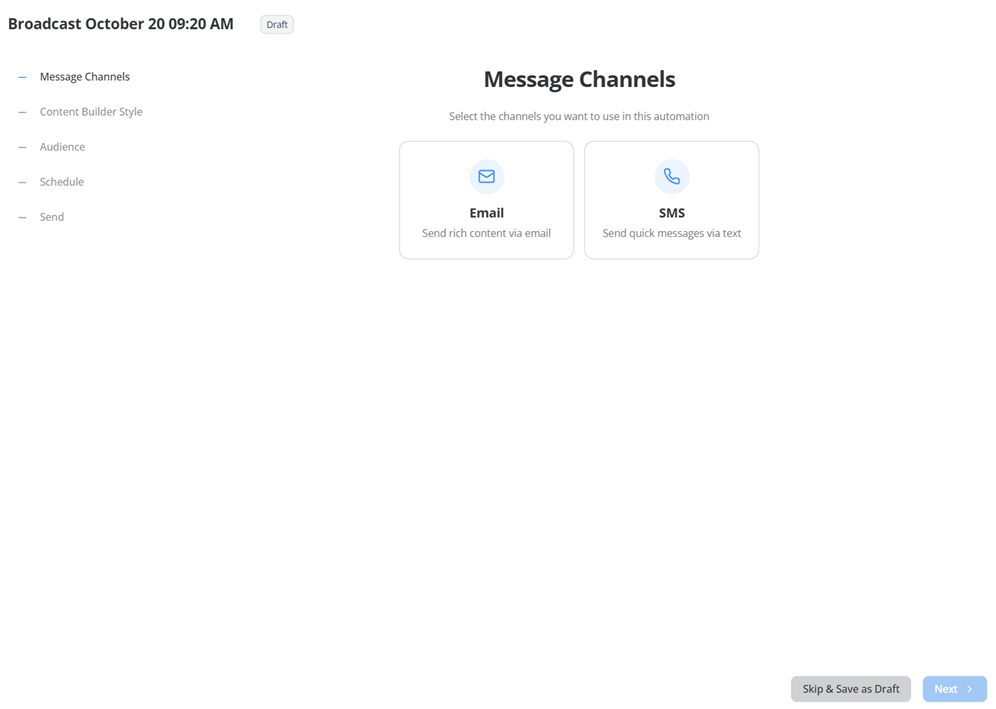
- On the Message Channels step, select Email, SMS, or both, then click Next. The steps on the left change to match the channels you select.
- On the Content Builder Style step, click Build with AI to describe your message and let AI write it, or click Build Manually to write the email and text yourself. Then click Next.
- If you chose Build with AI, describe what you want your message to say on the AI Prompt step. For example, "Send a spring opening promo email." If you chose Build Manually, skip to step 9.
- From the Image Style drop-down, choose how the AI-generated image should look: Illustration, Photo-like, Bold & Colorful, Cartoon, Minimalist, or Watercolor. AI creates up to one image for your message.
- Click the Generate button. Generating content usually takes about 60 seconds. When it's done, the Email Content step opens with the AI-generated draft. AI also names the broadcast based on your description.
- If you selected Email, review and update (if necessary) the From Email, Subject, and Preview Text fields. A subject is required. To add a merge field, click the icon at the end of the field.
Note: From Name and Reply To Email are global settings for all automations and broadcasts. To change them, click the settings gear on the Campaigns page.
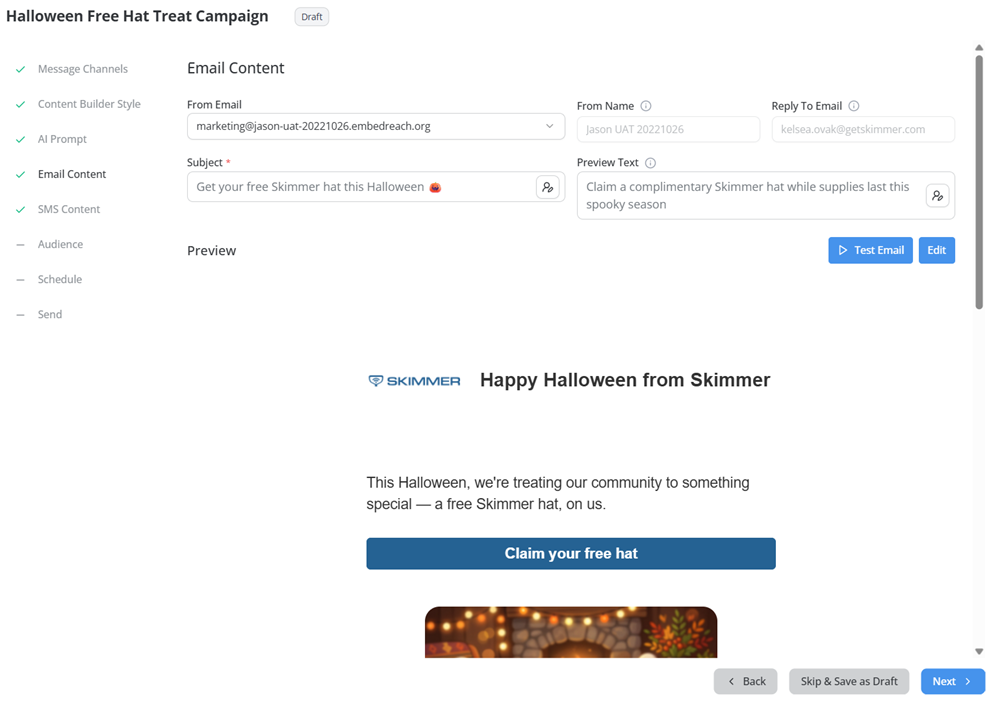
- Review the email in the Preview section. To change the email, click Edit. To send yourself a test, click Test Email. When the email is ready, click Next.
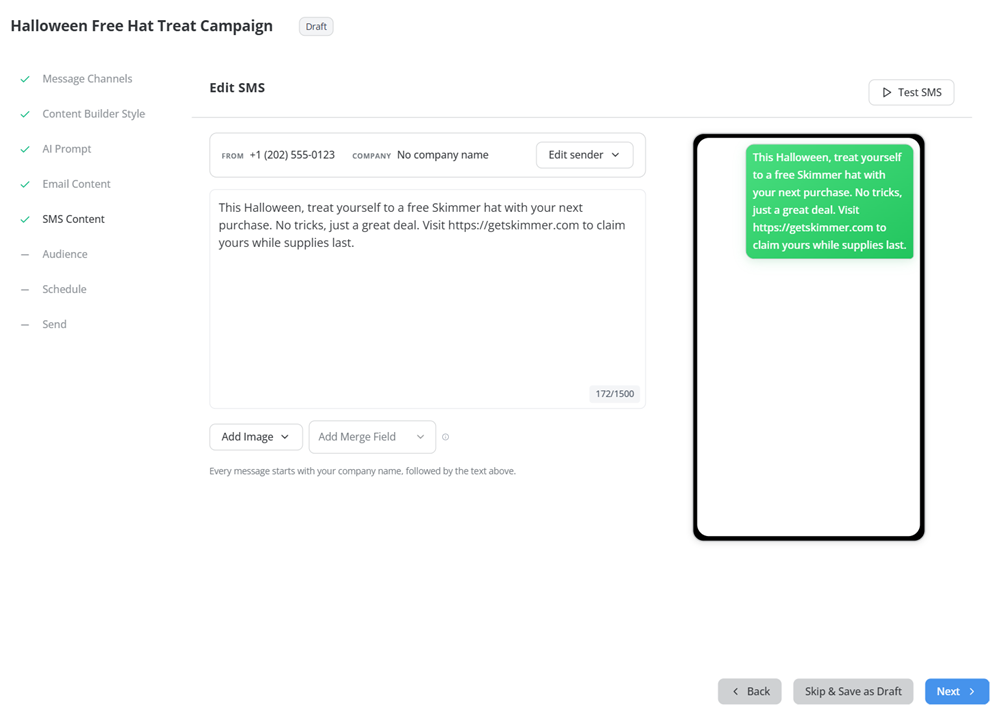
- If you selected SMS, review the text and its preview on the SMS Content step. You can click Add Image or Add Merge Field, and click Edit sender to change the number it's sent from. Every text starts with your company name. To send yourself a test, click Test SMS. Then click Next.
- On the Audience step, under Who should receive this?, click one of these options:
- Select Segments - Send to up to 5 segments. Click the segment field to open the Select Segments window, select the segments, and click Apply. To create a new segment, click New. To keep customers in other segments from getting the broadcast, click Don't send to and select the segments to exclude.
- Select Individual - Pick customers one by one. In the Select Individual Users window, search by name, email, or phone, select the customers, and click Apply.
- All Users - Send to every customer in your account.
- Review the Estimated Matches. It shows the total number of customers, plus how many can get email and how many can get texts. The list on the right shows each recipient and how you can reach them. Then click Next.
- On the Schedule step, click Immediately to send within about 2 minutes, or click Schedule and pick the date, time, and time zone. Then click Next.
- On the Send step, review the email and text previews. Use the Email and SMS toggle to switch between them. To check the sender, reply-to address, and preview text, click Details.
- Click the Schedule button. If you chose Immediately on the Schedule step, click the Send Now button instead. After you schedule a broadcast, a Broadcast scheduled! message appears, and the broadcast opens on its Workflow tab.
Note: You can unschedule and update a broadcast only if it's scheduled more than 2 hours away. The audience is set when the broadcast sends, not when you schedule it. Customers who unsubscribed from email or replied STOP to SMS are always left out, so you don't need to filter them yourself.
Edit the broadcast email
Clicking Edit on the Email Content step opens the email editor. Add content like images, text, buttons, and dividers from the toolbar on the left. Change colors, width, alignment, and other styles in the Global Styles & Layout panel on the right. To see how the email looks on a phone, click the mobile view button at the top. When you're done, click Save.
Manage your broadcasts
The Broadcasts tab on the Campaigns page lists your broadcasts, with the sales, emails, and texts each one sent, when it was last modified, and its status: Draft, Scheduled, or Completed.
Click a broadcast to open it. It has the same Workflow, Recipients, and Insights tabs as an automation. The Workflow tab shows the audience, the email and SMS steps, and the Start this broadcast step with the send date and time. The Recipients tab lists the customers who received the broadcast and the status of each email and text, like Delivered or Opened.
Cancel a scheduled broadcast
A canceled broadcast doesn't send. To send it later, create a new broadcast.
- On the Broadcasts tab, click the scheduled broadcast.
- Click the Cancel button in the top-right corner.
- In the Cancel Automation Before Sending window, click Cancel Automation. To keep the broadcast scheduled, click Continue Running.
Campaign insights
The Insights tab on the Campaigns page shows results across all your automations and broadcasts. Use the date range picker at the top to choose the dates. The tab shows:
- Email and SMS - Totals for all campaigns: emails sent and delivered, open rate, click rate, bounce rate, spam, and unsubscribed, plus texts sent.
- Business Sales Insights - Total revenue and total orders from your campaigns. Click Email Attribution for details on how sales are tied to emails.
- Automations and Broadcasts - A table of results for each campaign, including emails sent and delivered, open rate, click rate, bounce rate, spam, and unsubscribed; texts sent, delivered, and failed; order amount; orders; and when it was last updated. Click Automations or Broadcasts above the table to switch between them.
- Sales From All Campaigns - Each order that came from a campaign, with the campaign name, customer, transaction ID, amount, channel, sent date, and order date.
Note: Sales only appear when your account processes payments through Skimmer. Revenue updates daily, so today's orders may not appear until tomorrow.
Custom segments
Segments use the customer and pool data synced from Skimmer, so you can target customers by what matters in pool service. Available data includes:
- Bodies of water and equipment
- Latest water readings, like CYA and TDS
- Work order type, route stops, and invoices
- Service locations and tags
- Customer status, like active, inactive, or lead
Segments stay current. Customers move in and out of a segment automatically as your Skimmer data syncs, so there's no list to rebuild. You can reuse a segment in as many automations and broadcasts as you need, and a customer can be in more than one segment at a time.
Create a segment
You can describe the audience you want and let AI build the conditions, or build the conditions yourself with the Manual Builder. Either way, the Audience Preview panel shows who matches before you save the segment.
Tips for building segments
- Give segments descriptive names. Name a segment for who's in it, like "Active customers with spas," not something generic like "Segment 3." Clear names make it easier to pick the right audience later.
- Keep each segment to one purpose. A focused segment is easier to reuse than one that combines unrelated conditions.
- Start with the most restrictive condition. Watch the Audience Preview panel as you add conditions. If a segment returns zero customers or more than you expect, recheck the conditions and the AND/OR logic before you use it.
- Make automation segments specific. A segment that's too broad can enroll customers who aren't ready for the automation's messages.
- Avoid overlapping broadcasts. If two broadcasts go out at the same time to overlapping segments, customers in both segments get both messages.
- Check the audience count before every send. Segments grow and shrink as your data changes, so last week's count may not match today's.
How conditions work
Conditions are organized in condition groups. Each condition has a field, a comparison, and a value, like Is Inactive equals No. A short plain-language label above each condition describes it, like Active customer.
Use these buttons and options to build your conditions:
- AND and OR - Choose whether customers must match all of the conditions (AND) or any of them (OR). Adding AND conditions narrows the audience, and adding OR conditions broadens it.
- Customer Attribute - Adds a condition based on the customer's own information, like their billing address or whether they're inactive.
- Related Record - Adds a condition based on a record connected to the customer, like a service location, invoice, or customer tag. You can go a level deeper, like a service location's pools or a pool's equipment.
- Count - Sets how many related records a customer needs, like at least 1 pool.
- Sub Grouping - Adds a sub group inside the condition group, so you can mix AND and OR logic.
- Condition Group - Adds another condition group.
Each related record has its own buttons for adding conditions at that level, like Pool Attribute for a pool's details or ServiceLocation Attribute for a service location's details.
For example, the Active customers with spas segment combines two conditions: Is Inactive equals No, and the customer has a service location with a pool whose name contains "spa."
To remove a condition, click the X next to it. To remove a condition group, click Delete.
Create a segment with AI
AI-built conditions depend on how your data is recorded in Skimmer. For example, for "Active customers with a spa," AI looks for pools with "spa" in their name. A spa named something else doesn't match, so check the conditions against how your team names bodies of water.
- From the left navigation menu, click the Campaigns option.
- Click the Create button.
- From the What do you want to make? menu, click Segment. The Create Segment window opens.
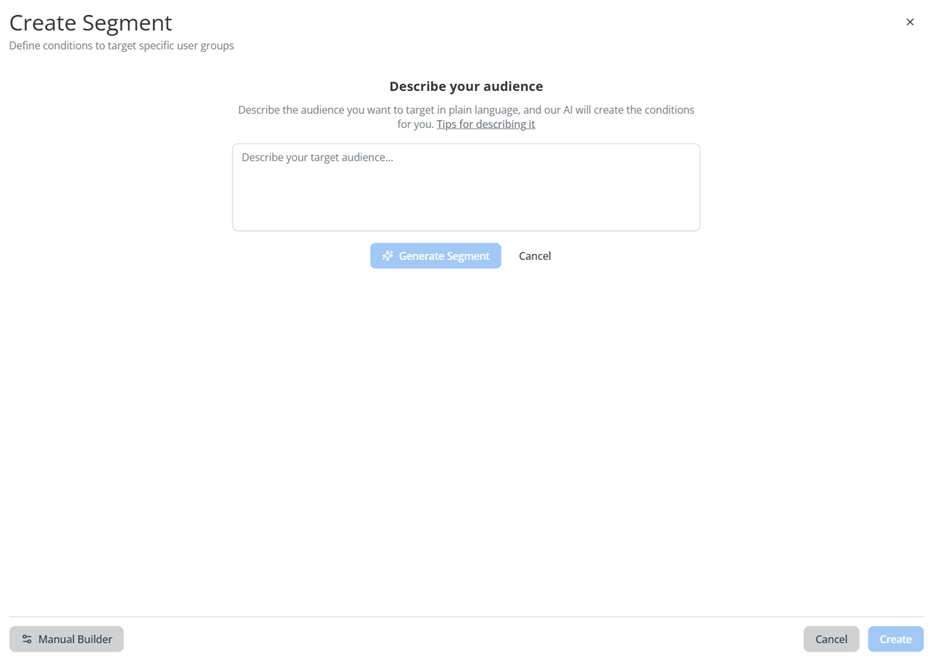
- In the Describe your target audience field, describe who you want to reach in plain language. For example, "Active customers with a spa."
- Click the Generate Segment button. AI fills in the segment's name, description, and conditions.
Tip: To describe the audience again, click the Build with AI button in the top-right corner of the window. - Review the conditions. For details, see How conditions work.
- Check the Audience Preview panel. It shows how many customers match and whether each one has an email address, a phone number, or both.
- Click the Create button.
Build a segment manually
- In the Create Segment window, click the Manual Builder button.
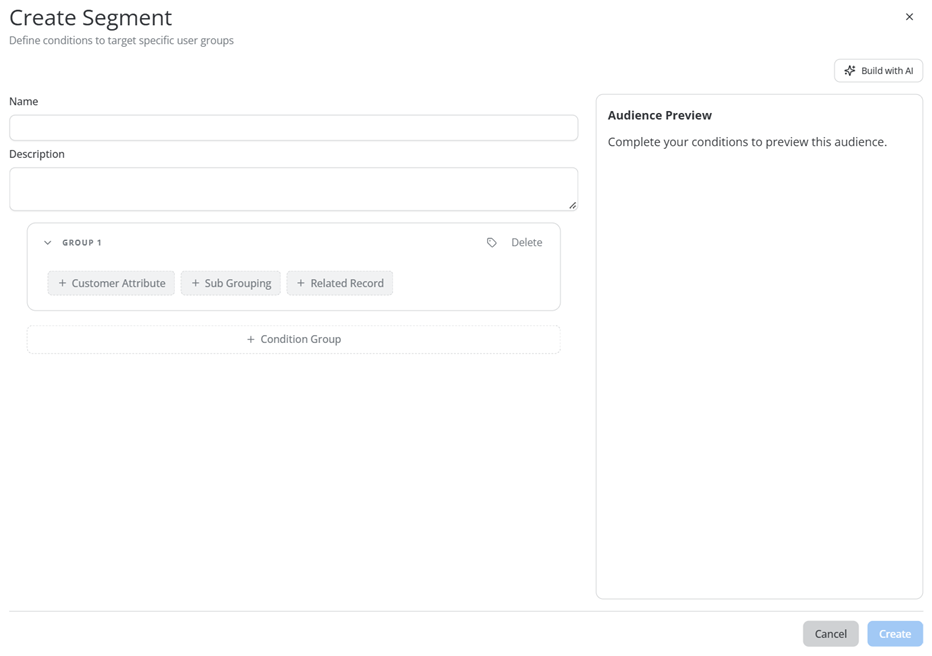
- In the Name and Description fields, enter a name for the segment and a short description of who's in it.
- Add your conditions. For details, see How conditions work.
- Check the Audience Preview panel. If a condition is missing a value, the panel shows "Complete your conditions to preview this audience" until you fill it in.
- Click the Create button.
Edit a segment
Changes to a segment apply right away to every automation and broadcast that uses it. In a live automation, customers who newly match the updated conditions can enter the automation. Customers already partway through it aren't removed, and they continue through their remaining steps.
- On the Campaigns page, click the Segments tab.
- Click the Edit button next to the segment you want to change. The Edit Segment window opens. You can only edit Custom segments. The Edit button is unavailable for Managed segments.
- Update the Name and Description fields, if needed.
- Review each condition. A condition has a field, a comparison, and a value, like Latest TDS (ppm) greater than 2499. Use AND or OR to join conditions.
- Check the Audience Preview panel. It shows how many customers match and whether each one has an email address, a phone number, or both.
- Click the Save button.
Troubleshooting segments
If AI can't build a segment from your description, you see "Let's try again with a better description" and the reason. To fix it:
- Be more specific. Use numbers and time windows, like "at least 3 stops in the last 90 days" instead of "regulars," and name things the way your Skimmer records do.
- Check which fields you have. Click Manual Builder and open the field list. AI can only use the fields listed there.
- Build it yourself. You can always build the segment in the Manual Builder.
FAQ
Does the assistant send messages on its own?
No. Nothing is created until you tell the assistant to build it, and nothing sends until you turn it on.
Can I edit the pre-built automations?
You can turn any automation off and edit the wording and design of its messages. To change who gets it, when it sends, or its steps, build a new version with the assistant. For details, see Change an automation that's already on.
Does this cost extra?
No. Custom segments and campaigns are included in Marketing Suite.