
Integrate With Heritage and Sync Products
Tiers: All
Connect Skimmer to your Heritage Pool+ account to sync product names, descriptions, and costs automatically, and place orders directly from Skimmer. You need an active Heritage Pool+ account and the Can view Heritage integration settings page permission to complete setup.
Connect your account
- From the left navigation menu, select Integrations, then select Heritage.
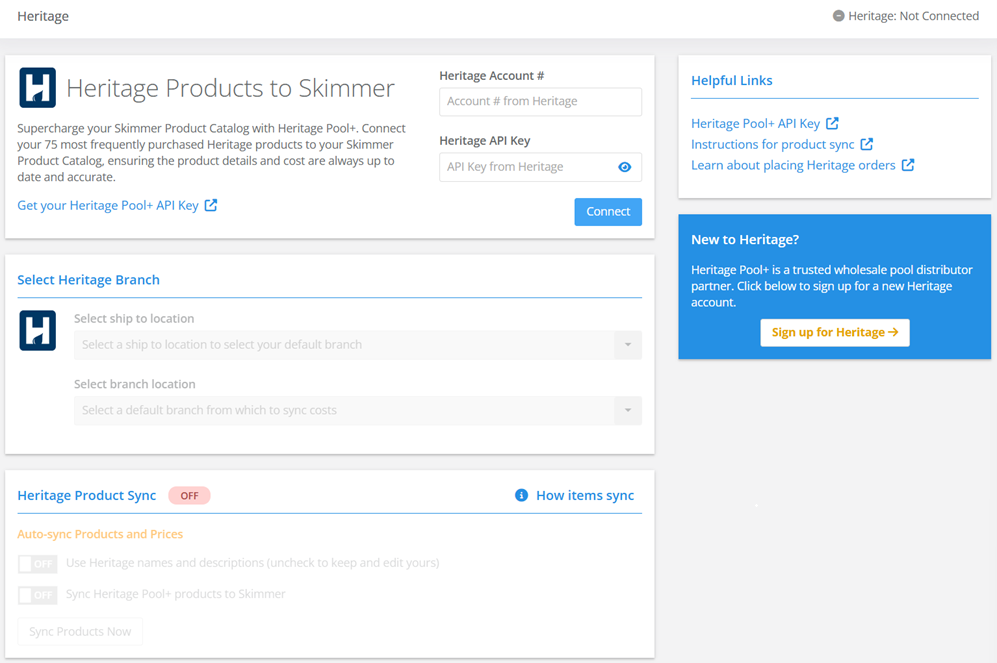
- Enter your Heritage Account # and Heritage API key. You'll find both in your Heritage Pool+ portal.
- Click Connect. Skimmer validates your credentials and shows a status indicator once the connection is active.
Set your default branch
- Select a default ship-to address and branch location. Skimmer uses the branch location to pull the correct pricing and check stock availability at order time. You can override both locations at the order level.
Configure product sync
- In the Heritage Product Sync section, turn on the toggles for the sync behavior you want:
- Use Heritage names and descriptions: On updates mapped products with Heritage's names and descriptions nightly. Off keeps your existing names and descriptions, and syncs cost only.
- Sync Heritage Pool+ products to Skimmer: On runs the sync automatically every night. Off means the sync only runs when you select Sync Products Now.
When you turn on the Sync Heritage Pool+ products to Skimmer option, the Map Heritage Products page is displayed.
Skimmer never overwrites your pricing, markup, categories, taxable status, or discontinued flags during sync, regardless of these settings.
Map your products
- From the Map Heritage Products page. Skimmer's guided setup pulls in your 75 most-purchased Heritage products from the last 6 months, listed in the left column.
- For each Heritage product, use the dropdown in the right column to do one of the following:
- Select an existing Skimmer product to map it to.
- Select Create new Skimmer product to import the item using Heritage's name and description.
- When you finish mapping, scroll to the bottom and select Import. Allow up to a minute for the products list to update.
Enable ordering (optional)
- See the Heritage Ordering article for information on ordering supplies from Heritage through Skimmer.
Import additional products
- To sync products beyond the initial 75, go to the Products page and select Import from file.
- Download a template or your existing products list, add your changes and any Heritage IDs, then upload the updated file.