
Heritage Ordering
Tiers: All tiers
Demos:
Set up Heritage Ordering
Heritage Ordering lets you order pool supplies directly from Heritage through Skimmer. Set up the right permissions, connect your Heritage account, and you're ready to place orders.
Set up permissions
- From the Settings section on the left navigation menu, select the Roles & Permissions option.
- Click the role you want to update.
- In the Role Details page, click the Edit button located below the permissions list.
- Click the Integrations (Desktop) section.
- Update the role's Heritage ordering permissions. Check the box next to a permission to add it or uncheck it to remove it:
- Integrations (Desktop) permissions:
- Can view the Heritage integration settings page - lets the user manage and set up the integration for the whole Skimmer account. Reserve this for admins.
- Can view Heritage order history - gives the user access to the Heritage order page to view order details.
- Can create and edit a Heritage order - lets the user build a draft order without placing it. No money changes hands until someone with the next permission submits it. This permission also supports quote-to-order workflows, since it lets a user create the base order from a quote without being able to place it.
- Can place Heritage orders - lets the user submit the order to Heritage and spend money on the company's behalf.
- Reports (Desktop) permission:
- Can view Procurement Report - controls access to a report on your company's purchases of Heritage items.
- Integrations (Desktop) permissions:
By default,these permissions are enabled only for the Admin role. This lets you decentralize ordering across your team while keeping control over who can actually spend money.
- Click the Update Role button.
Connect your account
- From the Integrations section on the left navigation menu, select the Heritage option.
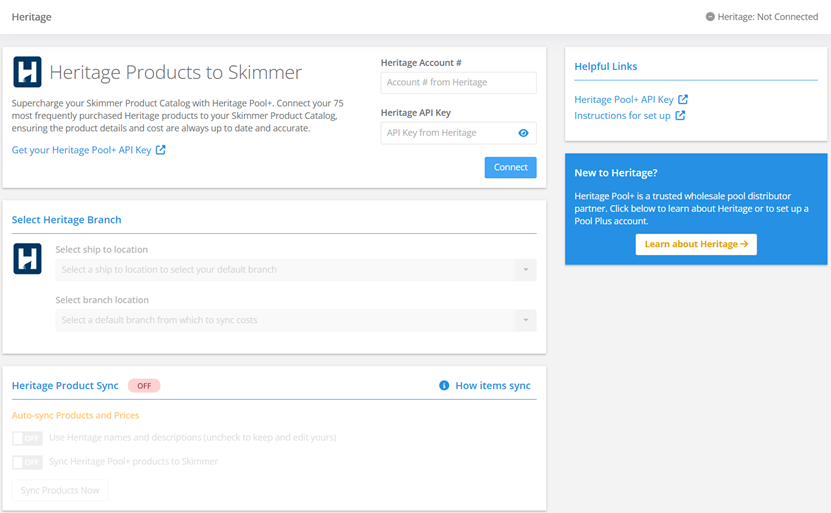
- Connect your Heritage account if it isn't connected already. A status indicator shows your connection status.
- Populate the following fields in the Select Heritage Branch section:
- Select ship to location
- Select branch location - by default, Skimmer uses this location to check quantities and prices for Heritage products.
- Use the Sync Items section to enable the following options (if needed):
- Use Heritage names and descriptions - Checking this box replaces your names and descriptions for products with Heritage's official names and descriptions.
- Sync Heritage Pool+ products to Skimmer - Heritage ordering works without this option, though the two features are compatible and we encourage you to use both.
- When you complete your updates to the Heritage Integration page, you can start placing orders.
Create and manage Heritage orders
Skimmer's Heritage integration lets you place and track orders directly from within Skimmer. Skimmer only displays orders created in Skimmer, it doesn't show past orders placed directly with Heritage. The Heritage order page organizes every order into tabs by status, and you can filter or search to find specific orders quickly.
View your Heritage orders
- From the Shopping List section on the left navigation menu, click the Heritage Orders option.
The Heritage Orders page loads. The top part of the page lists key totals including: total order cost last 30 days, cancelled/on hold last 30 days, open order cost, and invoice order cost last 30 days. Below the totals section, the page is divided into four tabs.
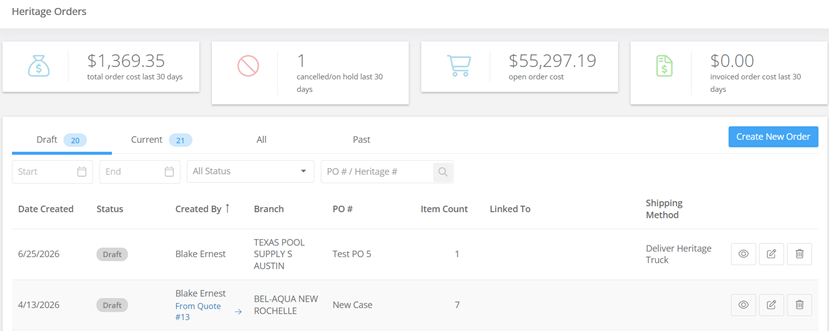
Heritage Orders page tabs
- Draft - shows orders you haven't placed with Heritage yet. You can edit or delete these orders, and this tab also includes any orders on hold.
- Current - shows orders that are active with Heritage. These orders appear in one of three statuses:
- Submitted: Heritage's system has received the order, but hasn't confirmed Heritage can fulfill it yet. This usually resolves within 15 minutes.
- Acknowledged: Heritage's system has confirmed it can fulfill the order. This status update happens automatically.
- Shipped: the order is being fulfilled, items are packaged and shipped, or ready for pickup.
Note: If an order stays in Submitted status for more than 15 minutes, contact Skimmer support so we can check with the Heritage team. If an order moves to On Hold, it usually means one of two things: there's an error with the order that needs your attention, or there is an issue with your Heritage account, and their system is holding all of your orders automatically. Contact your Heritage branch to discuss and resolve.
- All - shows orders in every status.
- Past - shows orders in one of two statuses:
- Invoiced: the order was fulfilled, shipped, and invoiced.
- Canceled: the order was canceled at your request.
Heritage Orders page columns
Each tab contains the following columns:
- Date created - date the Heritage order was created in Skimmer.
- Status - current order status.
- Created by - who placed the order, including the originating quote if the order came from one.
- Branch - which Heritage branch the order was placed with.
- PO number: a value you set to find and organize your own orders. You can reuse the same PO number across multiple orders.
- Heritage order ID: an ID assigned by Heritage once you submit the order. Only available for open and closed orders. You can't edit this value.
- Item count: the number of unique items on the order.
- Links: any links to a customer, service location, quote, or shopping list item.
- Shipping method: how you chose to have the order fulfilled (for example, pickup, scheduled pickup, or UPS ground) when you placed it.
- icons: the final column displays the action icons available for the order including Checkout, Edit Order, Reorder, and Delete Order icons.
Filter and search orders
Use the following filter and search options to locate specific orders:
- Date filter - Use the date filters to narrow results by start and end date. This searches both the date the order was created and the date it was submitted to Heritage, and returns results that fall within either date.
- Status filter - Use the status filter to narrow results by one or more statuses.
- Order number search - Use the order number search to find an order by its PO number or Heritage order ID. You don't need to specify which one you're searching by - the search checks both fields at once.
Place a Heritage order
Skimmer provides multiple options for Heritage orders. You can create a basic order for materials or customize your order by linking it to customers, quotes, or work orders.
The new order process consists of the following steps:
- Creating a new order
- Selecting shipping details
- Selecting order items
- Linking order items to customers
- Saving or placing your order
You can also reorder products by duplicating an old order.
Customer link examples
Link the entire order to a single customer:
You can create an order for a pump and some pool filters specifically for Deborah.
Link items in an order to multiple customers:
You can create an order for 4 filter cartridges, 2 variable-speed pumps, and 2 pump lid O-ring kits to be split between Barbara and Bette.
Link the entire order to a single customer and link items to other customers:
You can create an order for chemicals that you want to ship to Sanford Arms Apartments and include a pump that you need to use for Ingrid who lives across the street. That way your tech can install Ingrid's pump immediately after she finishes a service call at Sanford Arms.
Creating a new order
- From the Shopping List section of the left navigation menu, click the Heritage Orders option.
- From the Heritage Orders page, click the Create New Order button to access the Add Heritage Order page.
Selecting shipping details
- From the order destination section, confirm or update the following fields:
- Ship To/Branch - Skimmer defaults these from your integration settings, but you can edit them per order. The branch you select controls which products are available, since stock and pricing depend on that branch's inventory.
Note: If you change the branch on an existing order and an item isn't stocked at the new branch, you can't save or place the order until you either change the branch back or remove the unavailable items. - Delivery Method - select a delivery method. Available delivery methods depend on the branch you selected. You can save an order as a draft without a delivery method, but you can't place the order until you select one.
- PO Number - enter a PO number (optional). This is for your internal records only.
- Expected Date - enter an expected delivery date (optional). Use this field to tell Heritage when you need the order. If you don't need it right away, you can leave this blank or set a later date.
- Notes to Heritage - add any notes for Heritage, such as special handling instructions or details about the customer.
- Ship To/Branch - Skimmer defaults these from your integration settings, but you can edit them per order. The branch you select controls which products are available, since stock and pricing depend on that branch's inventory.
Selecting the items you want to order
- From the Search & Add Product section, select products using one of two search options:
- Product catalog search: click the Product Catalog button to search the products you've already linked through your sync. This shows stock levels and pricing automatically.
- Heritage search: click the Heritage Search button to search the full Heritage catalog, filtered to items available at the selected branch.
- If a product is sold in multiple units of measure (for example, each or case), select the unit you want. The price updates based on your selection.
- Review stock availability for each item:
- Out-of-stock items are temporarily unavailable at the branch but can still be added to the order.
- Not stocked items aren't sold at that branch at all and can't be ordered unless you change the branch.
Linking order items to customers
Skimmer gives you the option to select a default customer for each order item. This customer is pre-loaded in the Link to Customer window when you assign an item. You can keep the default option or assign the item to a different customer.
Select a default customer
- Click the Set default customer option.
- From the Set Default Customer window, populate the following fields:
- Customer
- Service Location
- Body of Water
- Quote (Optional)
- Click the Apply button.
Each time you click the Assign option next to an order item, the Link to Customer window displays the default customer information you entered. However, you can change these values to assign a line item to a different customer.
Linking order items to a customer:
- From the Edit Order page, click the Assign option next to the item you want to link to the customer.
- From the Link to Customer window, you can keep the default customer or use one of the following methods to select another customer:
- Click the Customer field and scroll through the list to locate the customer.
- Click the Customer field and begin typing the customer name to filter the customer list.
- After you select the customer, select the service location, body of water, and work order (optional).
Note: If you select a work order, the item links to that work order as a needed item, and creates a shopping list item. Once an item links to a shopping list item, it appears on the shopping list and in the items needed list in the mobile app. From there, you can install it and track it as completed work. - Click the Link to Customer button to save your selections and return to the Edit Order page.
- To link additional items to customers, repeat steps 10 through 13.
Saving or placing your order
- Click the Save for Later button to save the order as a draft, or click the Checkout button to proceed to the review page.
Note: A draft order and a saved order are the same thing - clicking Save for Later at any point in the process keeps the order in the draft tab until you check out and place it. - On the review page, check for any availability warnings. If you're ordering more than what's on hand, the system lets you know, but you can still place the order.
- Click the Place order button. This button is available only if you have permission to place orders.
Reordering products
- From the Shopping List section of the left navigation menu, click the Heritage Orders option.
- From the Heritage Orders page, locate the order you want to duplicate and click the Reorder icon. Clicking this button opens the Edit Heritage Order page with the previous order details prepopulated.
- Review the new order and make any needed changes.
- Complete the steps for Saving or placing your order.
Linking orders and quotes
Skimmer lets you connect orders and quotes so your team can see the full history of a job, whether you start from an order or a quote. You can link an existing order to any quote, or create a new order directly from an approved quote.
Note: Skimmer's Quotes feature requires the Scaling Up or Enterprise tier. Contact Skimmer Support for assistance in upgrading your access tier.
Link an existing order to a quote
- From the Draft tab in the Heritage Orders page, click the Edit Order icon for the order you want to link to a quote.
- From the Edit Heritage Order page, click the Relate to quote option to open the Relate to quote window.
- From the Relate to quote window, type the quote number or customer name in the Quote field.
- Click the Relate button.
The quote is now listed in the Related quote section of the Edit Heritage Order page. In addition, the order now appears in the Related Orders section on the corresponding Quotes page along with the item count, subtotal, creation date, and status. You can link multiple orders to the same quote this way.
Create an order from a quote
- From the left navigation menu, click the Quotes option.
- From the Quotes page, locate and click the quote.
- In the Related Orders section, click the Add button.
The Edit Order page displays and pre-populates the order with the items from the quote. - From the Edit Order page, you can:
- Remove any items you don't need for the order.
- Add items to the order - click the Heritage Search button and use the Search field to locate and select the product you want to add.
Items added directly to the order don't get added back to the quote - they're marked as linked to the quote they came from, so you can track which items originated where.
- Click the Save for Later button.
The quote's Related Orders section now shows each item's link status, so you can see which items came from the quote and which were added directly to the order.