
Readings Report
Tiers: All
Report category: Operations reports
Location:
Reports page > Readings
Customer profile > Body of water tab > Readings & Dosages section
Permission required:
Can view readings and chemical dosages reports
Can view Office Alerts settings page
The Readings report shows the latest readings and dosages at each body of water and flags what's out of range based on your Readings & Dosages office alerts. Use it to catch bodies of water that need attention without opening each customer profile one by one.
When to use this report
- Daily or weekly check — Find bodies of water with no recent readings or readings out of range before they become bigger problems.
- Trend review — Open a single body of water's Reading trends view to see how chlorine, pH, alkalinity, and other readings change over time.
- Record keeping — Export the summary view or a body of water's reading history for your records or to share with a customer.
Best practices
- Set up office alerts reading thresholds. The Readings page includes an Office Alerts Settings link you can use to review or update settings. This link is displayed only if you have permission to access the Office Alerts settings page.
The Readings report can only identify readings that are too low or too high if you define the low and high values in your office alerts (Reading was too high or too low). For example, create an alert for free chlorine readings higher than 10 and another for free chlorine readings lower than 2.
| Note: You don't have to enable the Panel, Email, or Urgent options for these alerts. |

This gives you:
- Out-of-range and in-range reading statuses in the summary view.
- A trend chart with a green band that reflects the upper and lower bounds, 2 through 10.
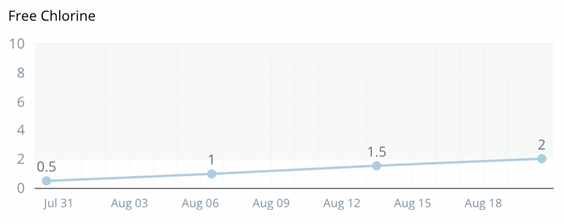
- Out-of-range values highlighted with a red background in the Readings & Dosages table.
- One reading per reading type. To ensure clear reading trends, review the readings you set up on the Readings & Dosages page to make sure you have only one reading set up for each reading type. This ensures your reading charts accurately reflect high and low readings for each reading type.
Report views
The Readings report has two views:
- Summary view — lists each body of water with its most recent reading status and any out-of-range readings.
- Reading trends view — shows reading trend charts and a full readings and dosages history for one body of water. Click a body of water in the summary view to open it.
Summary view
The Readings report opens to the summary view, which lists the latest reading status for each body of water. 
| Filter option | Description |
|---|---|
| Date | Defaults to the last 30 days, including today. Filters by the last service date. |
| Customer | Filters by one or more customers. |
| Technician | Filters by one or more techs. |
| Stop type | Defaults to include cleanings and work orders so the report lists the last service stop regardless of type. If your company doesn't tend to take readings on work order stops, update the filter to exclude work orders. This keeps the report from listing a more recent "no readings work order stop" instead of a cleaning stop where your tech recorded an out-of-range reading. |
| Reading status | Filters by reading status, including "no readings" and "out of range." |
| Customer status | Defaults to active customers. Switch to include inactive customers. |
| Column | Description |
|---|---|
| Customer | The customer's name. Click to view the customer's profile. |
| Service location / body of water | The service location and pool, spa, or other body of water. Click to open the Reading trends view for that body of water. |
| Last service date | The date of the most recent service stop. |
| Stop type | The type of the most recent stop, cleaning or work order. |
| Tech | The tech who completed the most recent stop. |
| Reading status | Reading status is based on the ranges you set in the office alerts settings:
|
| Out-of-range readings | Any readings from the last stop that fall outside the thresholds set in office alerts. |
Reading trends view
Click a body of water in the summary view to open the Reading trends view for that body of water.
| Filter option | Description |
|---|---|
| Date | Displays the same date range you selected in the summary view. |
| Body of water | Lets you switch to a different body of water without returning to the summary view. |
| Stop type | Filters by stop type: cleaning, work order, or both. |
The Reading trends view includes reading trend charts, a custom readings chart, and a readings & dosages table.
Reading trend charts
The Reading trends view displays one chart for each reading type other than None. Readings with a reading type of None (Settings > Readings & Dosages) are included in the Custom readings chart. A chart shows No readings when there's no data for that reading in the selected date range.
Example: CYA reading is high but trending lower
If you have multiple readings configured for the reading type — for example, two readings for free chlorine — Skimmer recommends you use the same unit of measure and high/low alert values for both readings. This ensures your charts accurately reflect high and low readings for the reading type. In addition, the Readings & Dosages table displays the readings in separate lines to provide more detail.
Custom readings chart
This chart plots readings with a reading type of None (Settings > Readings & Dosages).

Readings & dosages table
The Readings & Dosages table shows a row per service stop, with service date, tech, and work order type, followed by columns for each reading and dosage type your company has configured. Column names reflect your company's reading and dosage type setup. Out-of-range values are highlighted with a red background in the Readings & Dosages table.